Supplier payments: who you owe, and how to mark a payment
What to set up beforehand, and how to close several of a supplier's invoices with one payment.
Where it is: The Payments screen →
about 5 minUpdated October 4, 2026
The Payments section answers two questions: who the restaurant owes money to right now and how much, and what has already been paid. Setting it up takes a few minutes; after that, marking a payment is three clicks.
Important
If there's no Payments item in the side menu, the section isn't enabled for you yet — write to support.
What to set up beforehand#
Payment terms for your suppliers#
ReconDoc works out the due date of every invoice itself: the document date plus the number of days of payment terms from the supplier card. Until the terms are set, an invoice in the To pay list will say no due date — it will never become overdue and will never rise to the top. How to turn payment terms on is in Payment terms.
The accounts you pay from#
Open Settings → Supplier payments, the Accounts for supplier payments card. The list comes from the iiko / Syrve chart of accounts — the restaurant's money accounts (cash desks, bank accounts). Tick the ones you really pay suppliers with: only those will appear in the Payment account field.
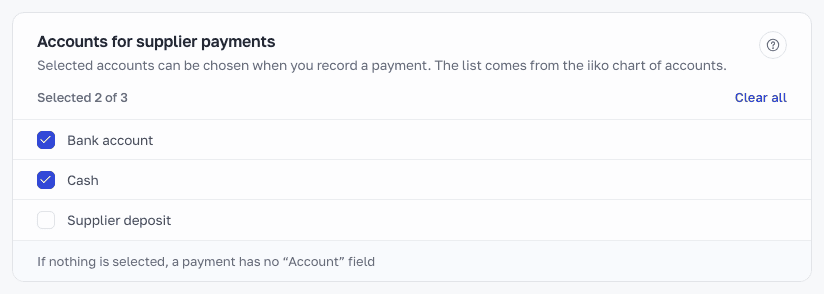
- While no account is ticked, there's no Payment account field in a payment at all. If you don't need to track where the money came from — simply tick nothing.
- Only the restaurant's owner can tick the accounts.
- If the list is empty, the reference data hasn't been read from iiko yet: press Sync reference data in Settings → iiko connection (the card has a link there).
- An account that has disappeared from iiko stays in the list marked deleted in iiko for as long as it's ticked: older payments refer to it.
Tip
There are usually a lot of accounts in a chart. The card has a search by name (it appears once there are more than ten accounts) and a Clear all button.
Who marks payments#
The owner and the operator, by default. If payments are handled by a separate person who doesn't need access to the invoices, invite them in Settings → Team members with the Payments manager role: they see only Invoices and Payments and change nothing on an invoice.
How to mark a payment#
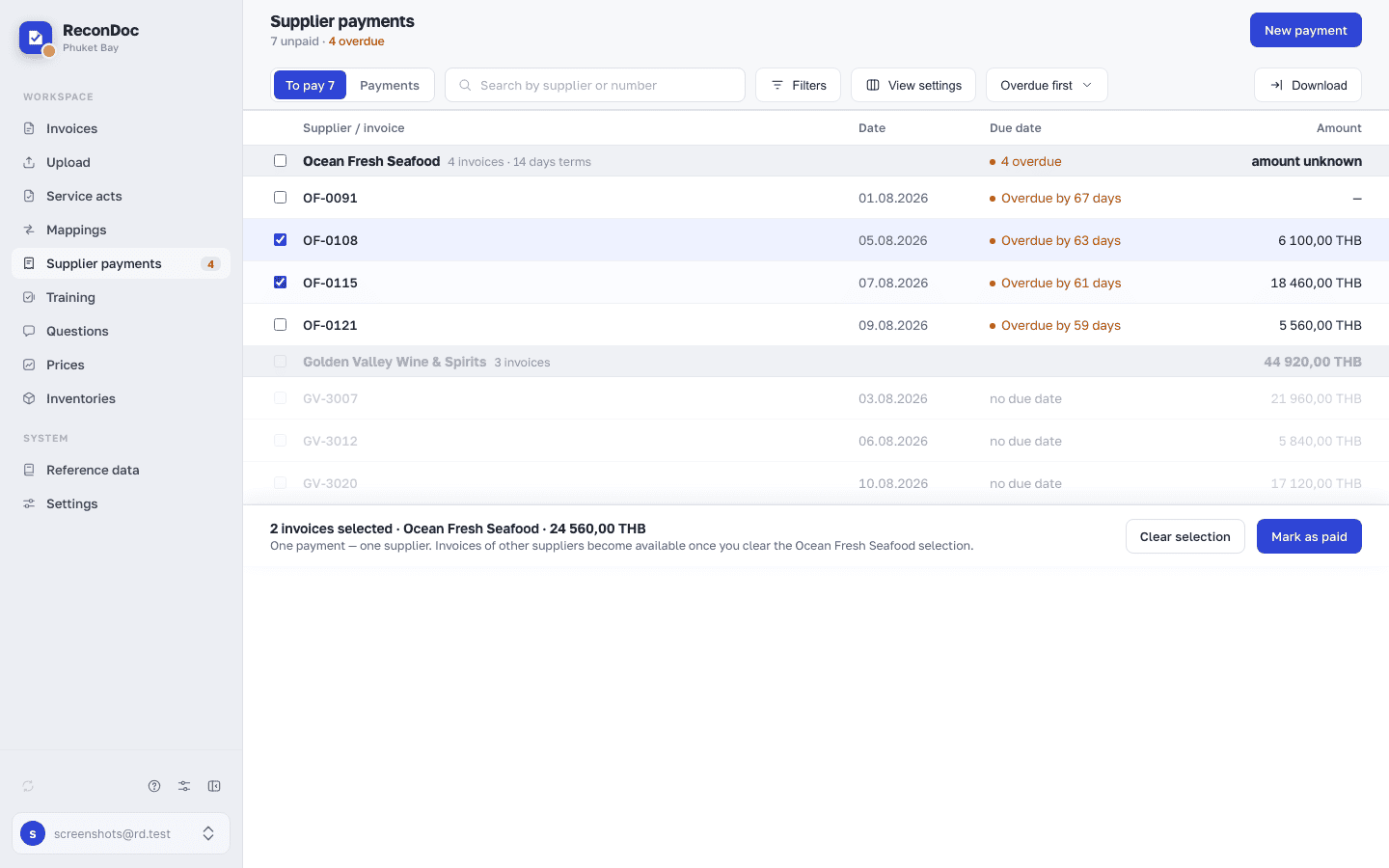
- Open Payments — the To pay tab. Unpaid invoices are gathered by supplier, and overdue ones are highlighted.
- Tick the invoices this payment closes. You can tick them all at once with the checkbox in the supplier bar.
- A bar appears at the bottom: how many are ticked, which supplier, and for how much. Press Mark as paid.
- In the form, fill in the payment date. The rest is optional: the receipt total, the payment account, a comment, and the receipt itself — a photo or a PDF up to 20 MB.
- Save payment.
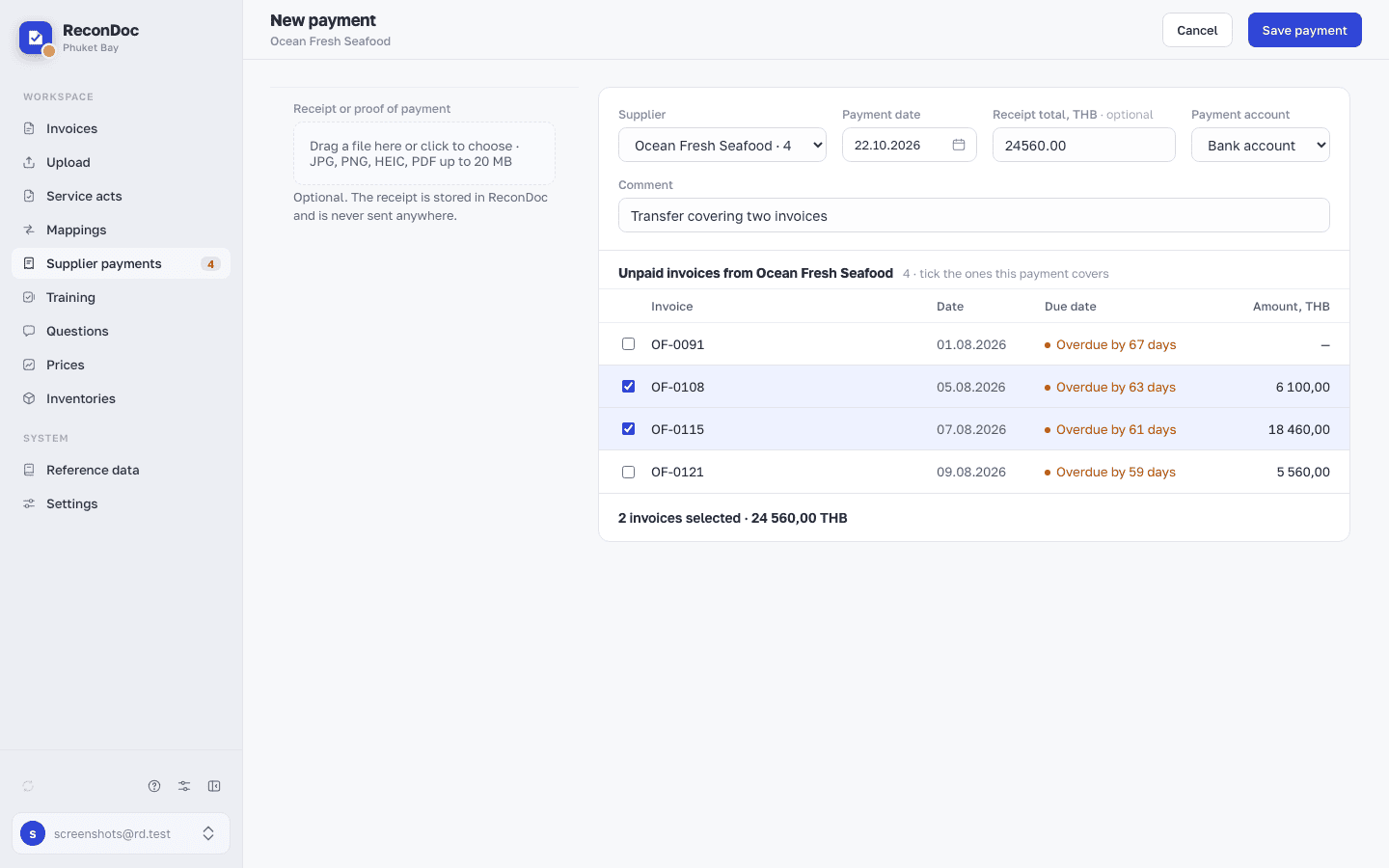
The ticked invoices leave To pay, and each of their cards gets a Paid mark with the date.
Tip
You can start from the other end too: the New payment button in the section's header — pick the supplier first, then tick their invoices right in the form. A payment can also be marked from the invoice itself, with the button in the payment block on its card.
Rules worth knowing in advance#
- One payment — one supplier. As soon as you tick the first invoice, other suppliers' invoices become unavailable. Clear the selection and they come back.
- One currency. The first invoice ticked sets the payment's currency; invoices in another currency can't be ticked.
- There are no partial payments: an invoice is either closed by a payment or it isn't.
- The receipt total is for reference. It may differ from the invoice total: the payment card simply shows the discrepancy and blocks nothing. If you leave it out, the card says receipt total not set.
- Payments stay in ReconDoc. They don't travel to iiko / Syrve and don't affect the delivery documents.
Correcting or cancelling#
Open the payment on the Payments tab — that's the journal for the period you've chosen.
- Edit — the date, the amount, the account, the comment and which invoices are included.
- Detach on an invoice row — the invoice becomes unpaid again and goes back to To pay. The last invoice can't be detached: if the payment shouldn't be there, delete it entirely.
- Delete payment — at the bottom of the Edit form; all of its invoices return to To pay, and the receipt is deleted.
Careful
Deleting a payment can't be undone: the receipt will have to be attached again.
How payments show up on invoices#
On the invoice card the payment is shown in the header: Paid 05.09.2026, Unpaid or Overdue by 5 days — with a link to the payment itself. In the invoice list a Payment filter appears — a quick way to see what's still unpaid for a particular supplier or over a period.
Done. Where next?#
What every element of the section means is in The Payments screen. Where the due date comes from is in Payment terms. Who to let into ReconDoc and with what rights is in Team: who to invite, and what they'll see.
What's next
Didn't find the answer, or the guide didn't help?
Ask support