The Payments screen
The section's two tabs, filters and view, the payment card and the form — what every element means.
about 4 minUpdated October 14, 2026
The section opens from the side menu and has two tabs: To pay — the invoices with no payment marked yet — and Payments — the journal of payments already marked. Everything that happens here stays inside ReconDoc: payments do not travel to iiko / Syrve.
The To pay tab#
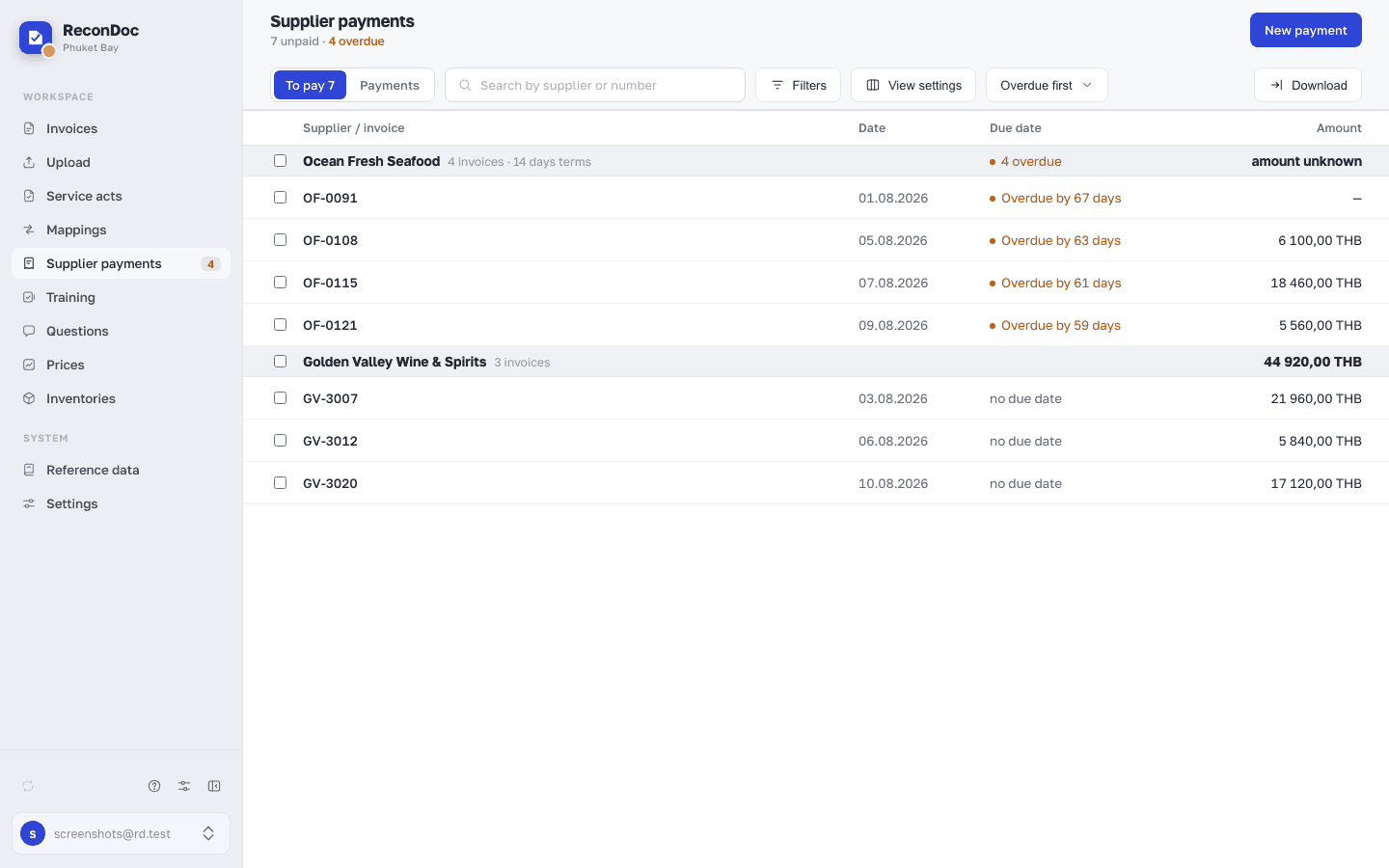 12345678
- Tab switch — To pay with the number of unpaid invoices, and Payments.
- New payment — a payment from scratch: the supplier first, then their invoices. Someone with view-only access doesn't have the button.
- Search — by supplier or invoice number.
- Filters — due date (overdue, within 7 days, later, no due date), supplier, an amount range, and whether the invoice has been sent to the accounting system; the number on the button is how many conditions are applied.
- View settings — group by supplier or show a flat list, compact rows, collapsing groups and the set of columns.
- Download — exports what's on screen to CSV: supplier, invoice, date, due date, days overdue, amount, currency.
- The supplier bar — the name (a link to the supplier card), how many invoices there are, the payment terms, how many are overdue, and the total owed. The checkbox in the bar ticks all of that supplier's invoices at once.
- Due date — the invoice date plus the payment terms from the supplier card. Overdue ones are marked with a red dot; with no payment terms it says no due date.
Next to the sorting (Overdue first, By due date, By amount, By supplier) the subheading shows how many invoices are unpaid in total and how many of those are overdue. The amount owed on a supplier bar is only shown when it's known: if an invoice has no recognized amount yet, amount unknown stands in place of the total, and if the invoices are in different currencies — mixed currencies.
When invoices are ticked#
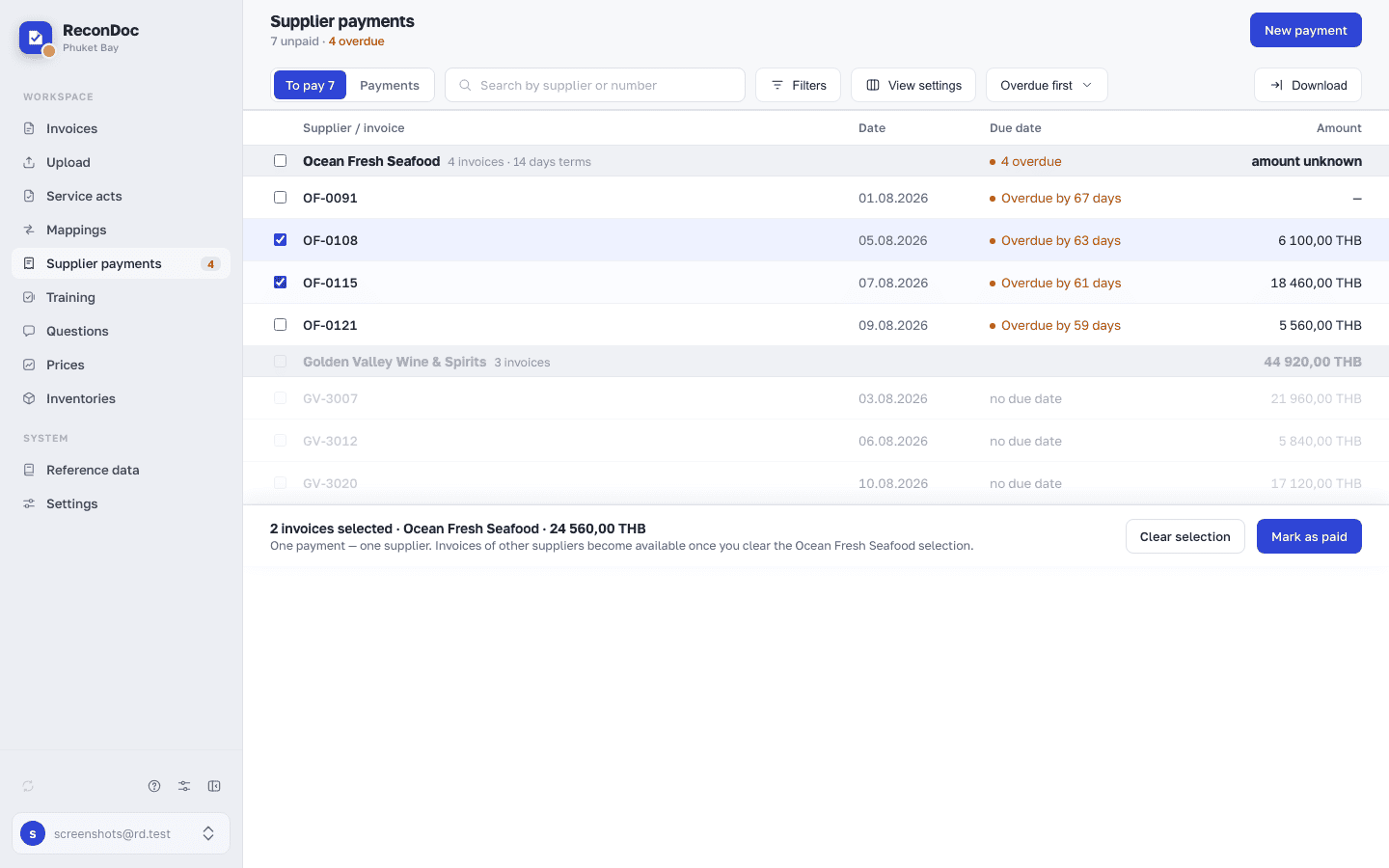 123456
- The bar's checkbox — ticks all of the supplier's invoices at once.
- A row's checkbox — ticks one invoice; you can click the row itself as well.
- How many are ticked — the number of invoices, the supplier and the total ticked.
- The one-supplier hint — other suppliers' invoices are dimmed: one payment closes invoices for one supplier only, and in one currency only.
- Clear selection — drops the selection entirely.
- Mark as paid — opens the payment form with the invoices already filled in.
The payment form#
Opened by Mark as paid or by New payment.
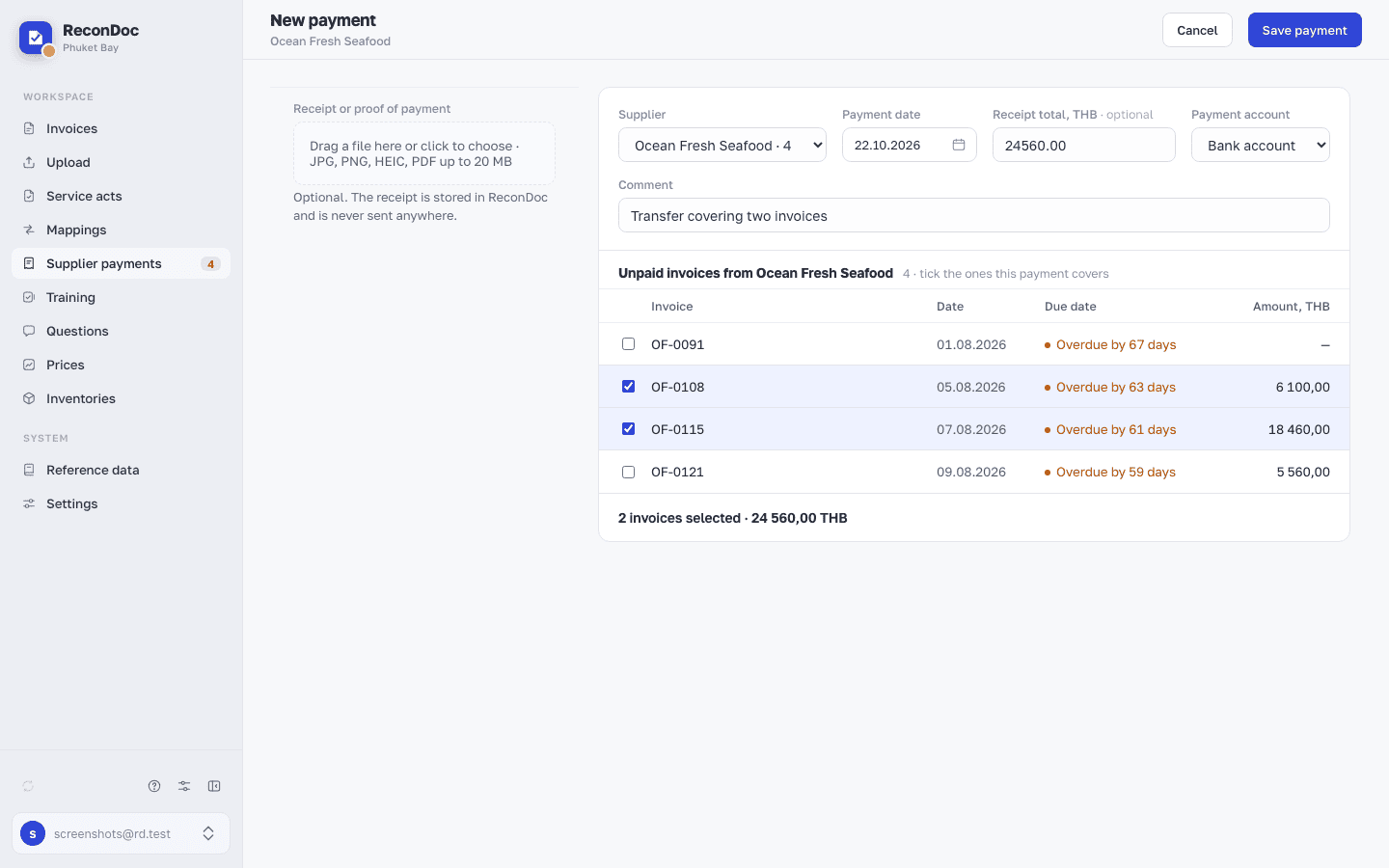 1234567
- Receipt or proof of payment — JPG, PNG, HEIC or PDF up to 20 MB. The file is kept in ReconDoc and isn't sent anywhere.
- Supplier — if you came from To pay, it's already filled in and can't be changed: a payment belongs to a supplier.
- Payment date — a required field, today by default.
- Receipt total — for reference, optional; the currency comes from the invoices. If it differs from the invoice total, a note about the discrepancy appears under the list — it doesn't stop you saving the payment.
- Payment account — which account you paid from. The field isn't there until the owner has picked the accounts in Settings → Supplier payments; once accounts are picked, the field is required.
- Comment — for example, "transfer from the owner's card".
- Unpaid invoices from the supplier — tick the ones this payment closes; the bottom of the list shows how many are selected and for how much.
The Payments tab#
The journal of payments already marked. Search on this tab looks through the supplier, the comment and the invoice numbers; clicking a row opens the payment card.
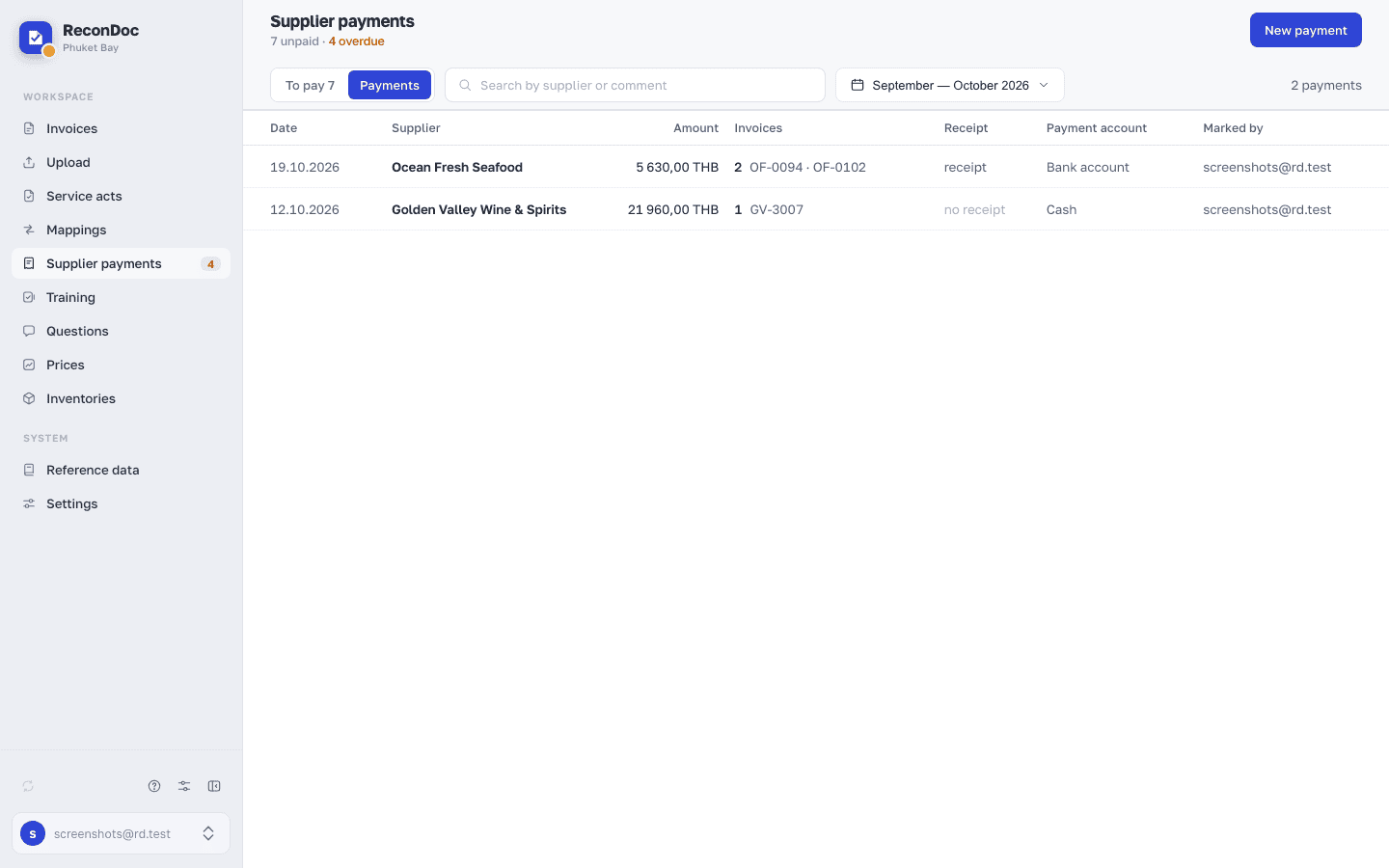 12345678
- Period — the previous and the current month by default; the button opens ready-made options or a range of your own.
- Date — the payment date.
- Supplier — who was paid.
- Amount — from the receipt, or, if that isn't filled in, the total of the invoices closed.
- Invoices — how many invoices were closed, and their numbers.
- Receipt — whether a file is attached.
- Payment account — the column only appears if accounts have been set on at least one payment.
- Marked by — who entered the payment.
The payment card#
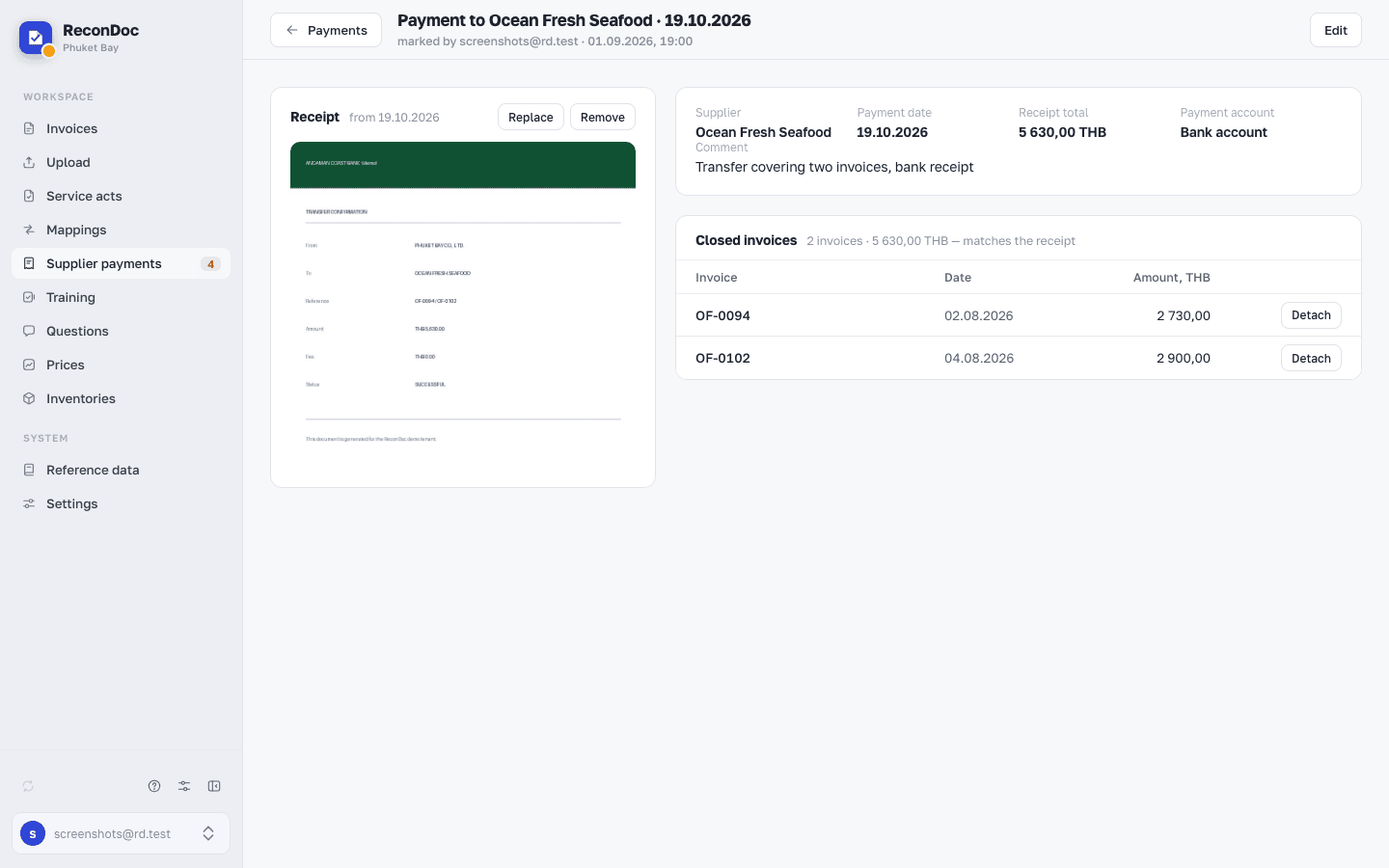 12345
- Edit — back to the form: the date, the amount, the account, the receipt and which invoices are included. At the bottom of the form is Delete payment: the payment disappears and its invoices go back to To pay.
- The details — supplier, payment date, receipt total, payment account and comment; the comment is edited right here.
- Receipt — view, replace and delete the file.
- Closed invoices — how many invoices and for how much, with a note beside it: whether the receipt total matches the invoice total.
- Detach — the invoice goes back to To pay. The last one can't be detached: delete the whole payment instead.
If an invoice was deleted from ReconDoc after it was paid, it stays on the card as a grey row marked deleted — it doesn't count towards the totals or the counters.
Done. Where next?#
The step-by-step order — what to set up and how to mark a payment — is in Supplier payments. How a payment looks on the invoice itself is in The invoice card.
What you do here
What's next
Didn't find the answer, or the guide didn't help?
Ask support