Settings: subscription and billing
The Subscription & billing screen: plan and usage, payment in two steps (what you pay for and how to pay), invoice packages, invoices.
about 3 minUpdated October 17, 2026
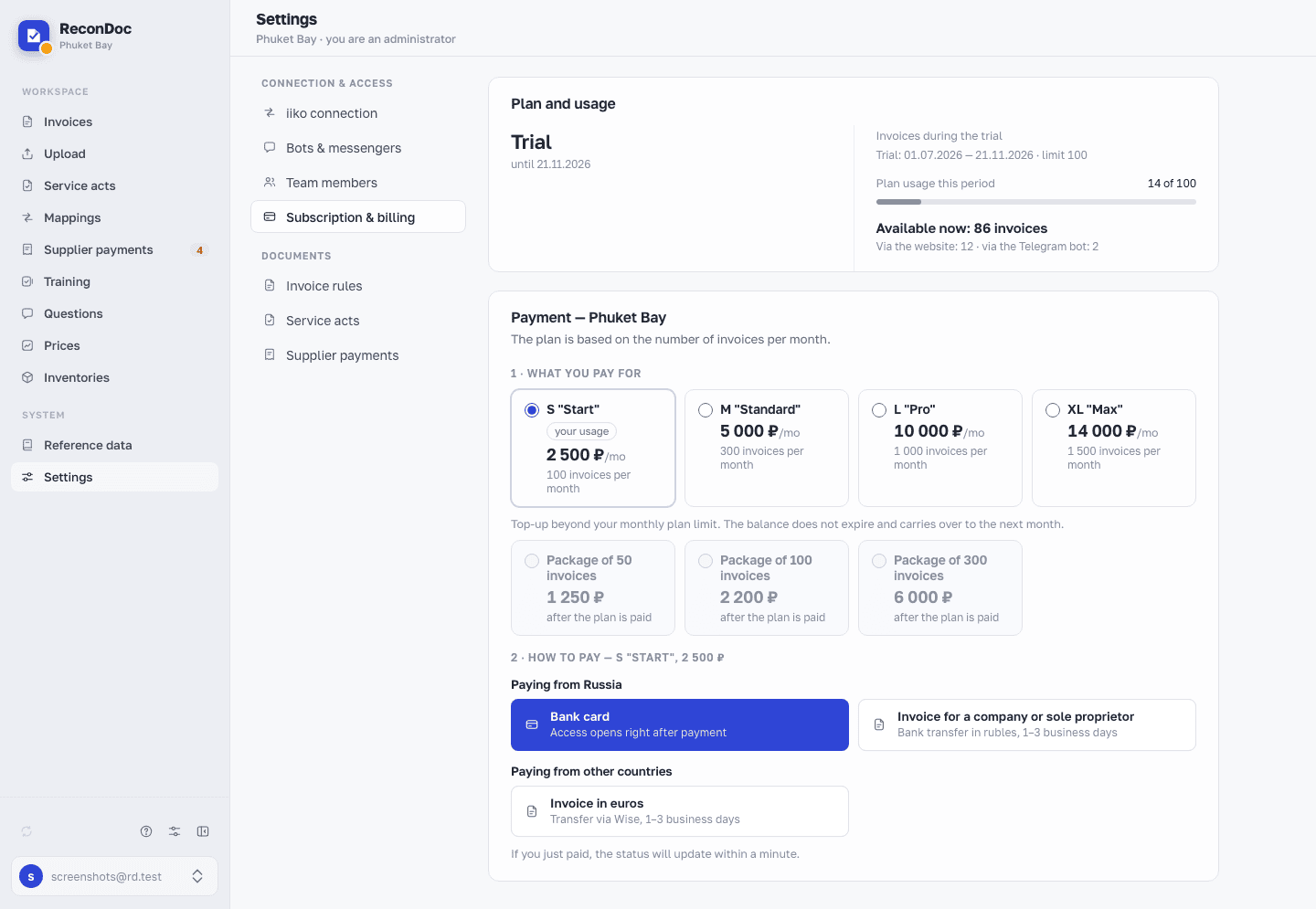
The Subscription & billing screen opens from the side menu (Settings, the Connection & access group) and brings together the plan, invoice usage for the paid period, payment and extra invoices bought above the limit. Only a restaurant administrator sees it — an operator has no such item in the menu. Who's on the team is on the neighboring Team members tab.
The screen#
 1234
- Plan — the current state of the subscription (the left part of the Plan and usage card): on a trial, the date it runs until; on a paid one, the name of the plan and the date it's paid up to.
- Invoices for the period — the right part of the same card, two bars. The top one shows usage against the plan: how many invoices out of the plan's limit have been used in the current paid period, whose dates are written above. The bottom one is the invoice package: how much of it has been spent and how much is left. The big Available now number is how many invoices you can upload right now, with a split below between invoices uploaded through the site and through the Telegram bot.
- Payment — the Payment — <restaurant> card in two steps; the restaurant's name appears once, in its heading. Step 1 · What you pay for is the tiles of plans and packages: pick one. Step 2 · How to pay shows the ways for what you picked: - Bank card — access or invoices open right after payment (the way is there only when online payment is set up for the restaurant); - Invoice for a company or sole proprietor — a ruble transfer to bank details, 1–3 working days; - Invoice in euros — a transfer through Wise, 1–3 working days. On custom terms, the plan shows the row Invoice in euros at your custom price instead: there is nothing to click — write to support through the link in the row, and the invoice is issued manually. Packages are still paid with a regular invoice in euros.
- Invoice packages — the package tiles inside step 1 · What you pay for: extra invoices above the plan's limit; what's left of a package doesn't expire and carries over to the next period. Until a plan is paid, the package tiles are disabled and marked after the plan is paid: pay the plan first.
The ways are split into "Paying from Russia" and "Paying from other countries". You don't make an invoice by hand: click Invoice for a company or sole proprietor or Invoice in euros, fill in the payer's details and click Issue invoice — it appears above the payment card, with Download PDF, Copy payment details and I have paid (click it once you've sent the money). While an invoice for the chosen item is issued, the invoice ways are unavailable, while Bank card stays available. Below the payment card come Invoice packages (the balance, transfer to another restaurant, package history), Invoices and the Referral bonus.
A higher plan takes effect right after payment: its limit opens at that moment, the invoice counter starts over, and the Plan and usage card shows a line like "Plan M from … to …". The unused balance of the previous plan is lost, and periods you paid for in advance move later — the note under the plan tiles warns you about all of this before you pay. Invoices uploaded before the payment stay with the previous plan. For a week after the change a note at the top reads "Plan S was replaced by plan M". A lower plan paid for partway through the period takes effect after the paid one ends: the line "From …, plan S: … invoices per month" shows the date. If you paid to extend the same plan, a Next period paid line appears under the dates with its own dates and limit. Once the plan's limit runs out but the package still has invoices left, invoices are drawn from the package — the top bar turns red in that case, and that's not an error. Once both the limit and the package run out, new invoices are not accepted until you buy another package. You can buy up to three packages a month; if you need more, write to us and we will find a plan that fits your volume.
Transferring invoices between restaurants#
If you have several restaurants in ReconDoc, you can move the remaining package balance from one restaurant to another: in the "Invoice packages" card, click "Transfer to another restaurant" and choose the restaurant and the number of invoices. Only the owner of the restaurants can transfer; administrators see the transfer history but not the button. Both restaurants must be paid. If the receiving restaurant has uploaded invoices beyond its package, the incoming invoices first cover what it uploaded beyond its package — the form shows how many will arrive. A transfer can't be undone, but you can transfer invoices back. Transfers are not purchases and don't count toward the limit of three packages per month.
Done. Where next?#
What makes up the cost of a plan and what happens when payment is late is in Plan, invoice limit, and billing. Who works in the restaurant and what each role sees is on the Team members tab.
What you do here
What's next
Didn't find the answer, or the guide didn't help?
Ask support