Upload
The Upload section and what each element means: files, supplier and store, the plan's limit.
about 3 minUpdated September 15, 2026
There are two equally good ways to get an invoice into the service: through the browser in the Upload section, or straight from a bot in Telegram or MAX — without opening the service at all (bots are set up in bots & messengers settings, a working group is set up by the Telegram group instructions, your own MAX bot by The MAX bot). Upload is the path where you can name the supplier and the store for each invoice before you send it.
The empty section#
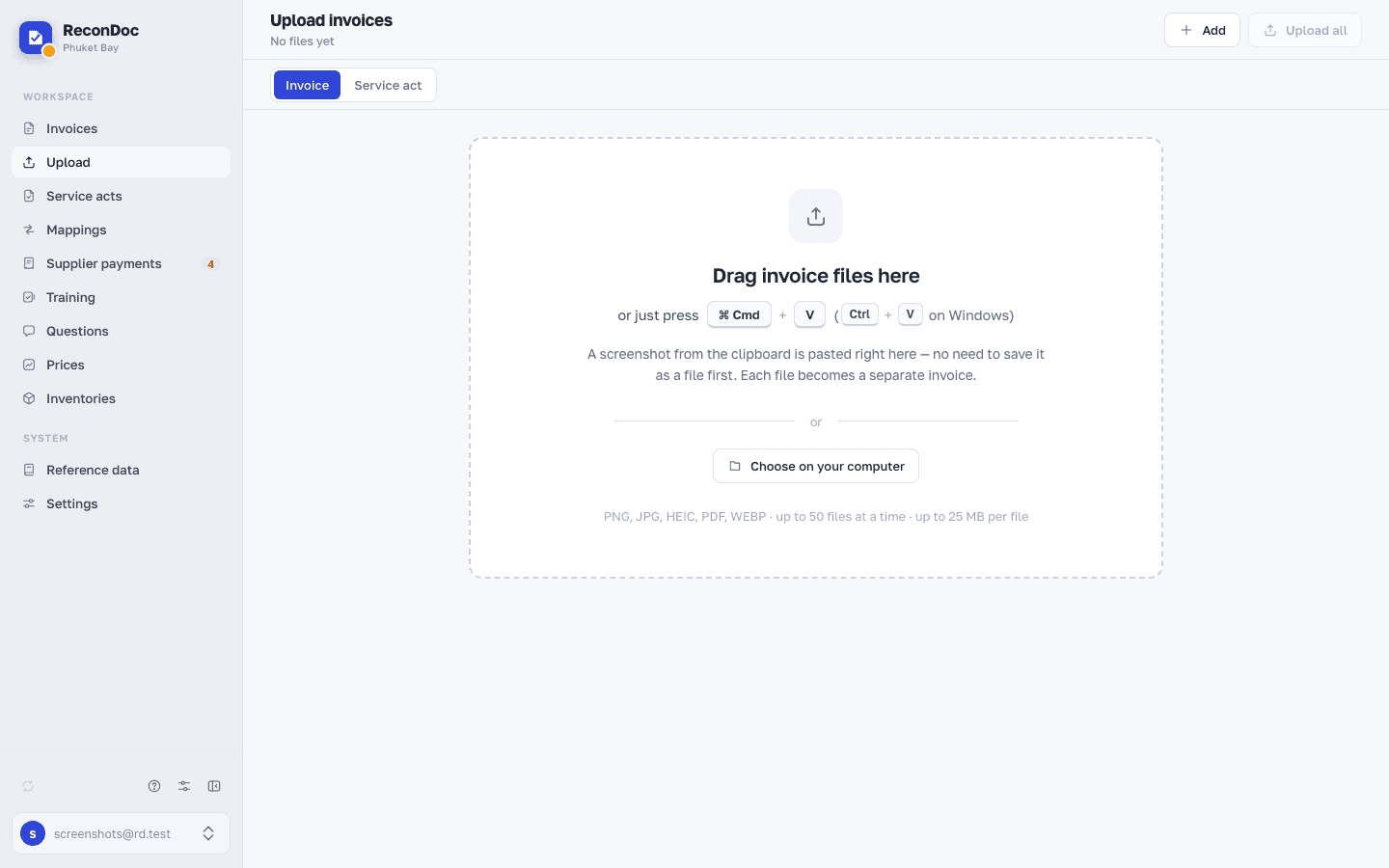 1234
- Section heading — how many files and how many invoices are in the list right now; when the list is empty it says No files yet.
- Add — opens the file picker; the same list also accepts drag and drop.
- Upload all — unavailable until there's at least one file in the list.
- Drop area — drag invoice files here or press Choose files; every file becomes a separate invoice, and several shots of one document you merge yourself: tick them and press Merge into one invoice in the panel above the list.
The file list#
Once added, each file takes the row of its future document — you can set the supplier and the store right away instead of opening the invoice later.
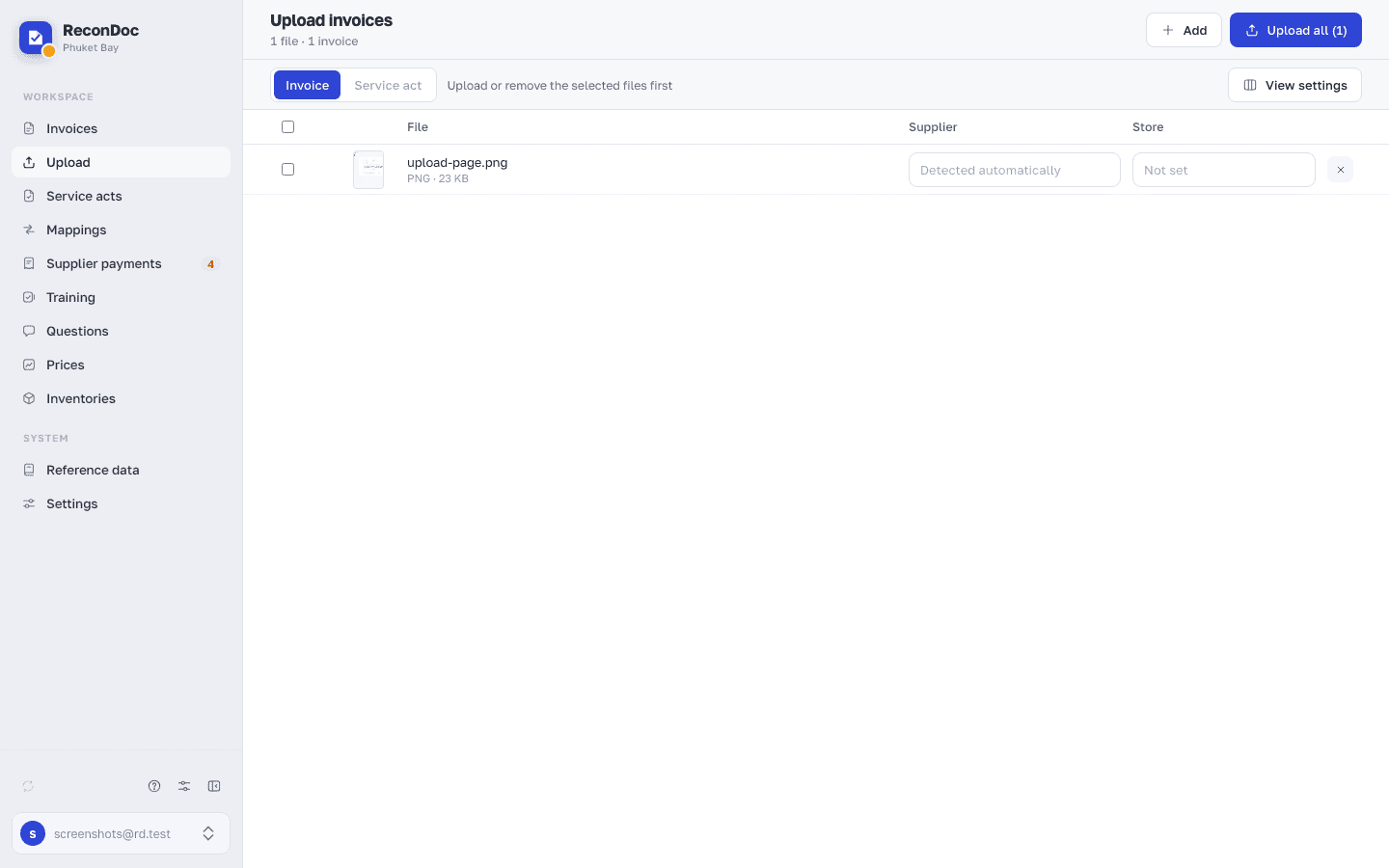 123456
- Section heading — the number of files and invoices updates as you add them.
- Add — appends files to the list you've already gathered.
- Upload all — sends every invoice in the list for recognition; if your plan or package has fewer left than there are files in the list, the button sends only what's available, and the subheading under the section name shows what's left.
- File — the preview and the name; the invoice appears once this row is sent.
- Supplier — you can set it now instead of picking it in the card later; leave it empty and the service works it out from the invoice itself.
- Store — where the invoice is received; leave it empty and the service uses the default store for that supplier.
Done. Where next?#
The files are sent — the invoices show up in the main list already recognized.
What you do here
What's next
Didn't find the answer, or the guide didn't help?
Ask support