Settings: invoice rules
The Invoice rules screen: the VAT rate and VAT rules, sending and currency, where to look for products in iiko, languages, tax ID and model; next to it, accounts for payments and tech cards.
about 5 minUpdated October 17, 2026
The Invoice rules screen opens from the side menu (Settings, the Documents group) and sets the rules every invoice lives by from then on: the VAT rate and how VAT is accounted for, what happens to an invoice after the check before it's sent to iiko / Syrve, the currency it's created in, and which iiko nomenclature sections products are looked up in. Service acts, accounts for supplier payments and tech cards have moved to tabs of their own in the same menu: they are described below.
The screen#
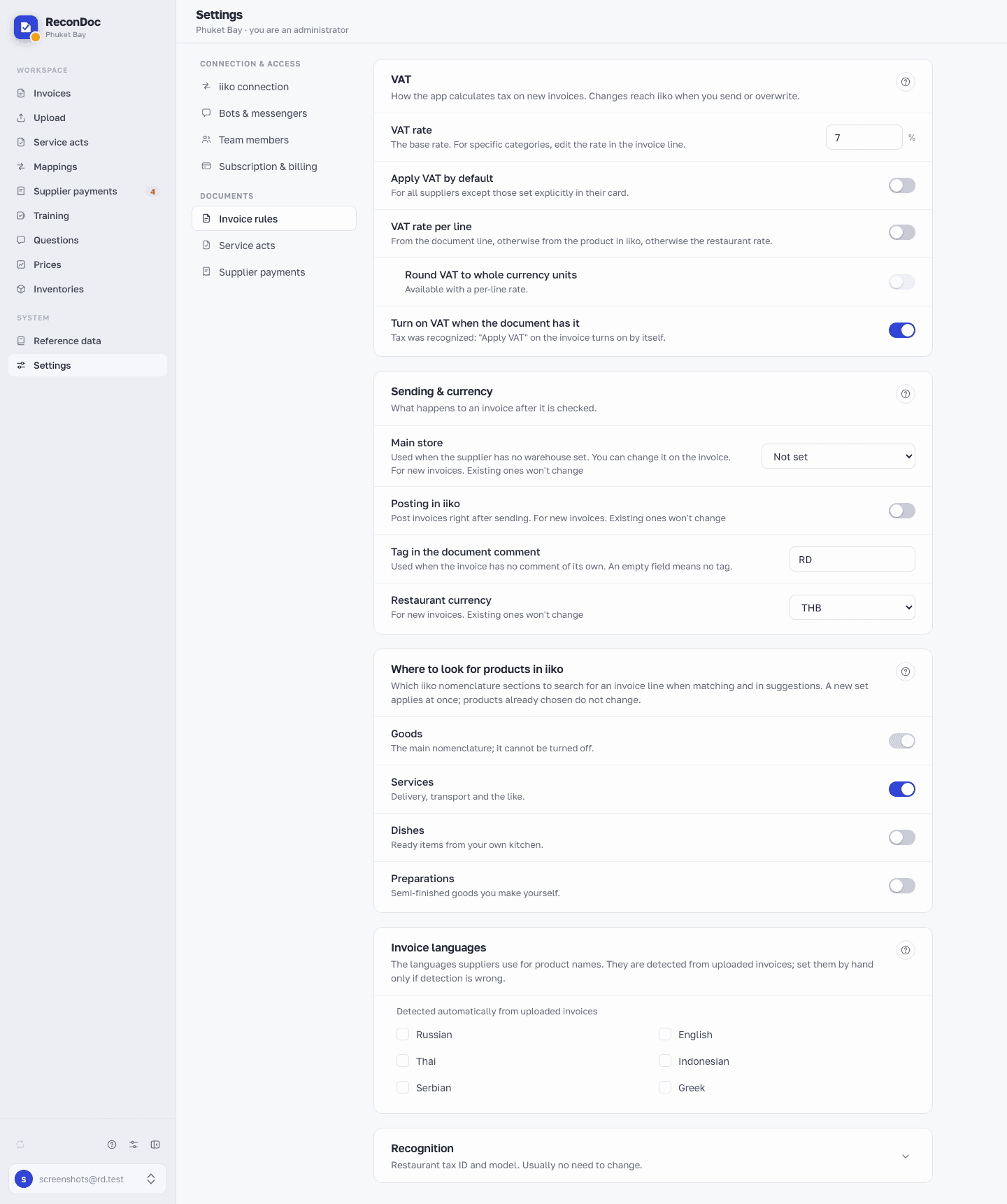 12345678
- VAT rate — the restaurant's base rate as a percentage; if the rate differs for particular categories of goods, it can be corrected by hand right on the invoice lines.
- Apply VAT by default — turns VAT on for every supplier at once; if no rate is set and the products in iiko have no tax categories, it won't turn on — the app will ask you to set the rate above first. The toggle does not override an explicit setting made for a particular supplier on their own card.
- VAT rate per line — per-line VAT without tax categories in iiko: the rate comes from the document line, otherwise from the product card in iiko, otherwise the restaurant rate; the printed tax amount is checked against the per-line calculation and any mismatch is shown on the invoice card. If iiko has tax categories, the mode is on by itself and the toggle is locked; it can't be turned on without a restaurant rate. Applies to invoices not yet sent and to invoices being rewritten.
- Round VAT to whole currency units — rounds the total of each rate to a whole unit of currency, the way a paper invoice does. Available when the VAT rate per line is on (the toggle above or tax categories in iiko); without it ReconDoc uses the printed VAT amount and the toggle is unavailable.
- Turn on VAT when the document has it — when a tax is recognized on an invoice, its Include VAT toggle turns itself on; if you then switch it off by hand, recognizing the invoice again won't change that back.
- Sending & currency — the whole card: what happens to an invoice after the check, and the currency it's created in. Its rows, in order: Main store (put into new invoices when the supplier has no store chosen), Posting in iiko (post invoices in iiko immediately after sending), Tag in the document comment, Default conception (the row is there only when iiko keeps accounting by conceptions) and Restaurant currency.
- Tag in the document comment — the text that goes into the iiko document's comment when the invoice itself has no comment of its own; an empty field leaves the comment empty.
- Restaurant currency — the currency new invoices are created in.
Below on the screen come the Where to look for products in iiko and Invoice languages cards and the collapsed Recognition card; they aren't in the screenshot and are described in the sections further down.
How these settings add up to the toggle on an invoice#
Include VAT on the invoice card is decided by a cascade, from the top down: it looks at the invoice itself first — if VAT was switched on or off there by hand, the cascade stops; otherwise it looks at the explicit setting on the supplier's card; and only if that isn't set does it take Apply VAT by default from this screen. Turn on VAT when the document has it ticks the box from the recognized tax, but only while the invoice itself hasn't decided anything, and it doesn't override what you switched off there by hand.
VAT rate#
The restaurant's base rate as a percentage. If the rate differs for particular categories of goods, it can be corrected by hand right on the invoice lines. It affects invoices not yet sent and invoices being rewritten. Changes reach iiko only when you send or rewrite an invoice with the button.
Sending and currency#
This card sets the main store, whether invoices are posted in iiko right after sending, which tag goes into the document comment, the default conception and the currency. The store, posting and currency are copied into an invoice when it is created: each of these rows says "For new invoices. Existing ones won't change". The comment tag and the conception are read at the moment of sending, so they also apply to invoices that haven't gone to iiko yet.
Where to look for products in iiko#
The Where to look for products in iiko card: here you tick the iiko nomenclature sections an invoice line is looked up in, both when matching and in suggestions. Products is always on; the rest (services, dishes, preparations) is on as needed. It's best to leave out sections you don't buy from (for example, ready dishes): matching then makes fewer mistakes. A new set takes effect at once; products already chosen don't change.
Invoice languages#
A separate card. The languages are detected from the invoices you upload; set them by hand only if detection got it wrong, and Restore auto-detection undoes the manual choice. The chosen languages decide the search names given to products, so an invoice line in another language still finds its product. There are no callouts for this card in the screenshot.
Recognition#
A collapsed card at the very bottom: open it with the arrow. It holds two settings, and you normally don't need to change either.
Restaurant tax ID#
The Tax ID of your restaurant row is the buyer's tax ID from your invoices. If recognition takes it for the supplier's tax ID, the system ignores it and doesn't remember it.
Recognition model#
The default model applies to all of the restaurant's invoices when the supplier has none of its own; ReconDoc default leaves the choice to the service. The row is visible only when model choice is turned on for the restaurant.
On neighbouring tabs#
Three cards that used to live on this screen are now separate items in the Documents group of the menu. Old bookmarks and links to them redirect to the new place by themselves.
Service acts#
The Service acts tab: the Turn the section on toggle (the administrator sets it), the time zone for acts and the default expense account; the caption under the account shows when the chart of accounts was synced. While the section is off, the side menu has no Service acts section. Acts are sent through the Cloud API key on the iiko connection tab; how to get it is in Cloud API for service acts.
Accounts for supplier payments#
The Supplier payments tab, the Accounts for supplier payments card (there when the Payments section is enabled): the accounts you tick can be picked when a payment is entered. The list comes from the iiko chart of accounts. While none is ticked, there is no Account field in the payment.
Tech cards#
The Tech cards tab (when the tech-card section is enabled; operators don't see it): where to put the items created from a tech-card photo, and what to recognize them with. It is the only place where ReconDoc creates items in iiko, and only if a person has turned that on for the restaurant.
Done. Where next?#
How currency and VAT work at the restaurant level, and what to do when an amount doesn't add up, is in Currency and VAT. How these settings show up on the invoice itself is in The invoice card.
What you do here
What's next
Didn't find the answer, or the guide didn't help?
Ask support