Inventory
How to check an uploaded sheet, compare stock quantities with iiko, and send the inventory.
about 5 minUpdated September 30, 2026
Use this screen to check a completed inventory sheet and send the inventory to iiko. The menu item is called "Inventories"; it appears when the section is enabled for the restaurant. How to export and fill in the sheet is covered in Inventory from an iiko sheet.
Before sending, the document is stored only in ReconDoc. "Draft" means you can still work on it: check products and correct quantities.
Upload#
Click "Upload iiko blank" and select an .xlsx file. Check "Store", "Date", the list of worksheets, and any warnings about the lines.
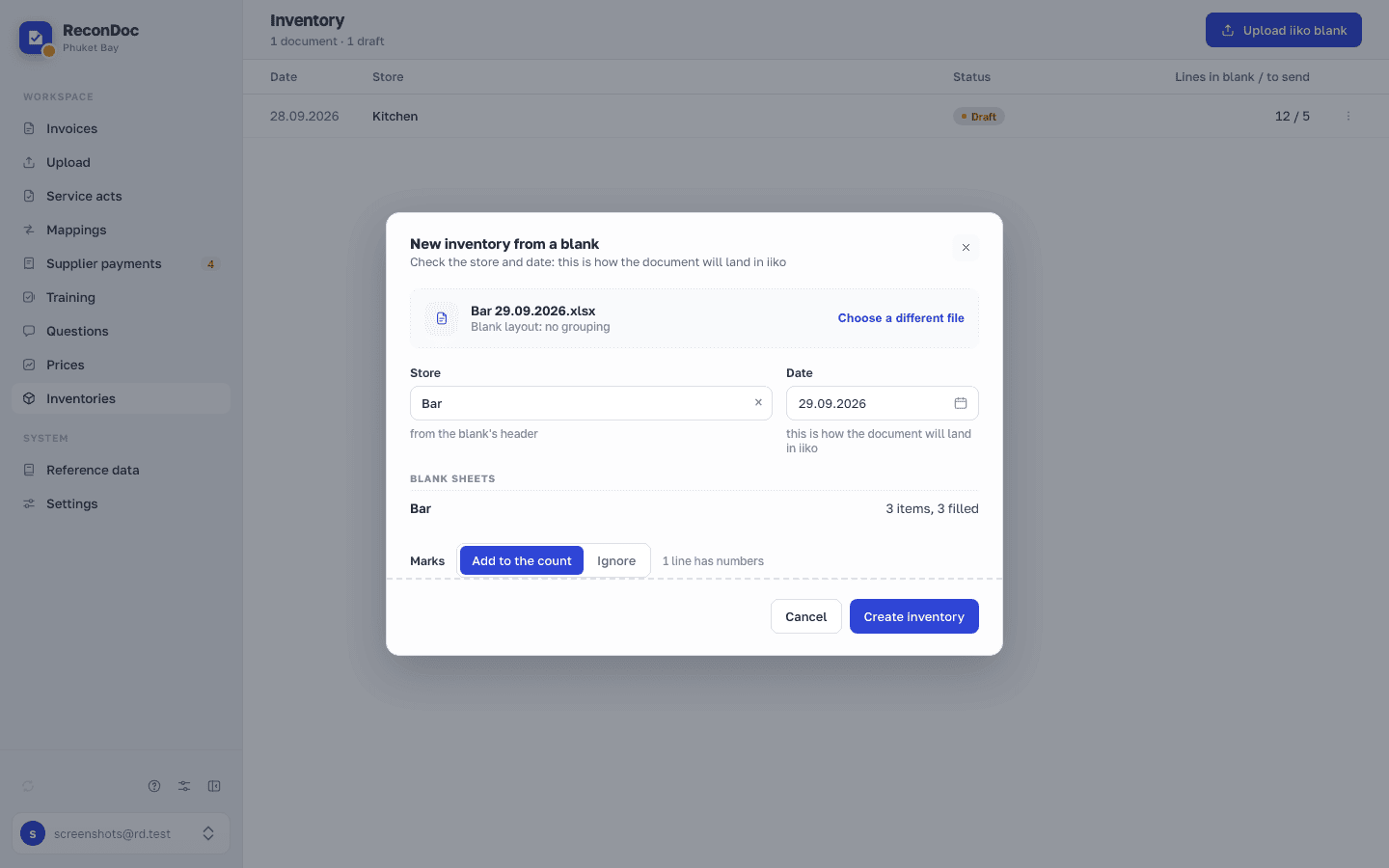
If the marks column contains numbers, you will see two options: "Add to the count" adds them to the counted quantity; "Ignore" uses only the main quantity.
Click "Create inventory". One file creates one document, even if it contains several worksheets.
Check lines#
On the "Lines" tab, check "iiko product" and the quantity in "Actual". "To send" shows the quantity after applying your choice for marks. The "Need a decision" filter shows only the lines that block reconciliation and sending.
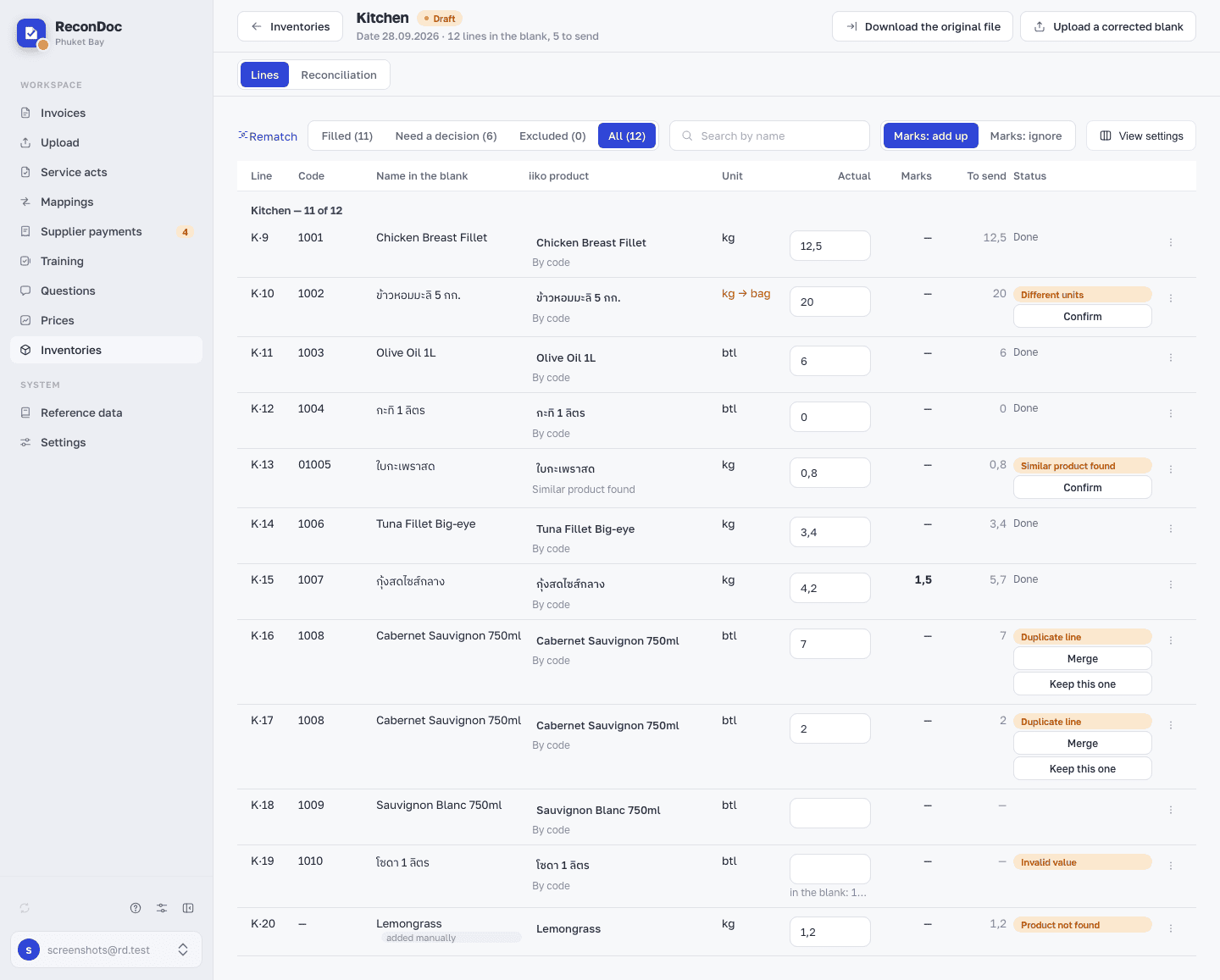
- "Product not found" — select the correct product under "iiko product".
- "Similar product found" — the name or the code without leading zeros matched. ReconDoc does not pick such a product by itself: click "Confirm" if it is correct, or select a different one.
- "Invalid value" — enter the correct number in "Actual".
- "Different units" — compare the units in the sheet and in iiko, convert the quantity to iiko's unit, then click "Confirm". For example, enter 0.5 for 500 g if the product is measured in kilograms.
- "Duplicate line" — the same product appears in several lines. "Merge" adds up their quantities; "Keep this one" keeps the selected line and excludes the others.
To leave a line out, open its "…" menu and choose "Exclude from count". Use "Return to count" to include it again.
Careful
Zero means there is none of the product left. An empty "Actual" means the product has not been counted, and the line is not sent. The exception is when marks are added to the count: then the quantity from the marks is sent even if "Actual" is empty.
Goods and preparations are sent to iiko. Dishes, excluded lines, and uncounted lines are not sent. Products missing from the sheet are not added to the document.
Reconcile and send#
Open the "Reconciliation" tab — the comparison with iiko starts automatically. "Actual" is your quantity, "Book" is the quantity recorded in iiko, and the difference shows a surplus or shortage. Click "Reconcile with iiko" to check again.
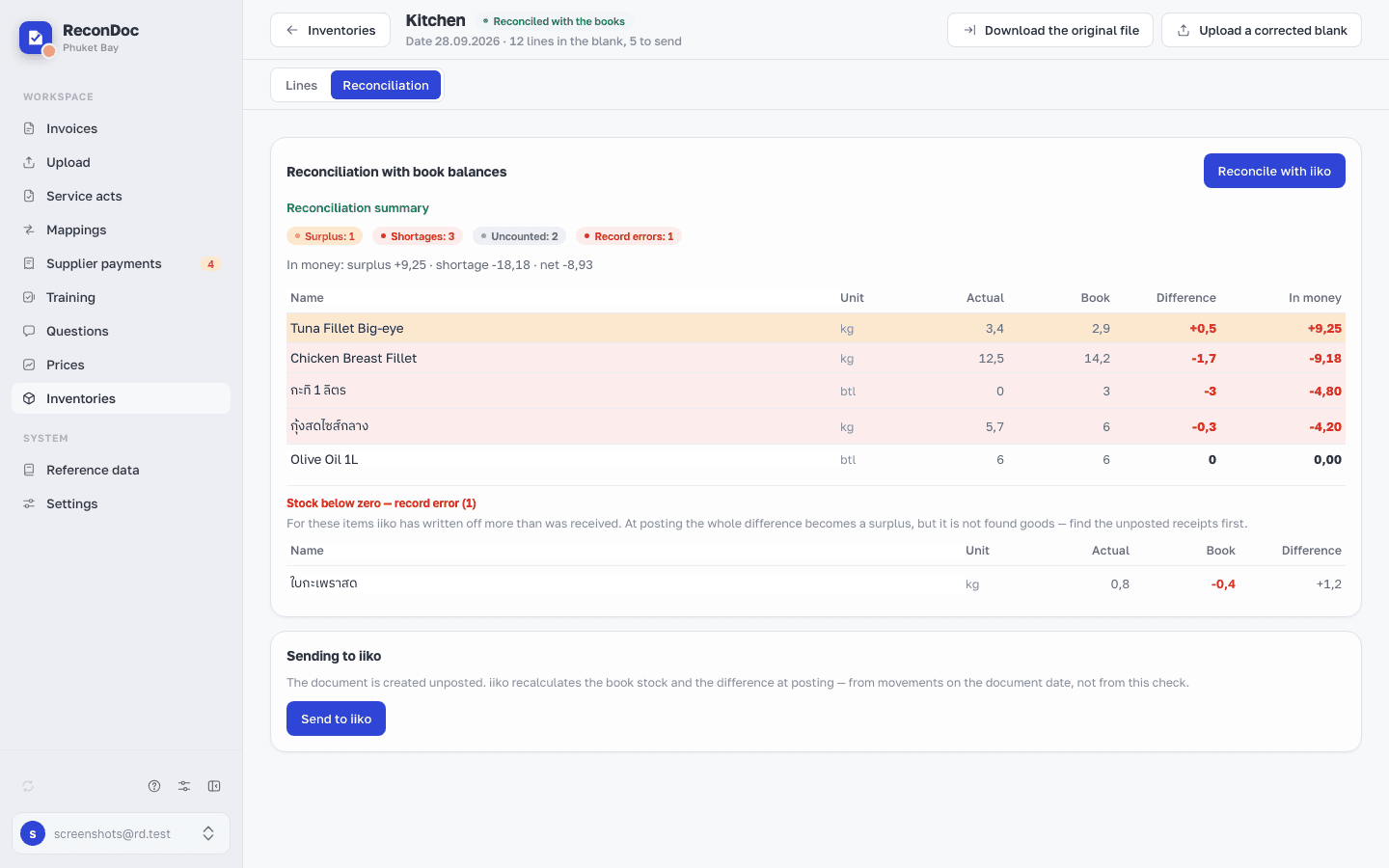
If unsent or unposted invoices are listed, resolve them first: they affect stock balances. Negative stock balances in iiko are shown separately as accounting errors.
After reconciliation, the restaurant owner can click "Send to iiko". Check the store, date, and number of items in the confirmation window, then click "Send".
Careful
The document is created unposted, at the end of the selected date. Post it in iiko — see Posted or unposted: which to pick. If documents dated on or before that day change before posting, the final surplus and shortage may differ from this comparison.
Repeat uploads and corrections#
- The same file again — ReconDoc offers "Open the inventory"; a second document is not created.
- A corrected file before sending — open the document, click "Upload a corrected blank", then confirm with "Replace lines". Uploading from the list also offers replacement when an unsent document already exists for the same store and date.
- A new file after sending — you may see "Create a second document". This is a separate inventory, not a correction to the one already sent: after sending it, iiko will have two documents.
Replacement takes quantities from the new file, including any quantities you edited on screen. For lines whose code and name match, ReconDoc keeps the manually selected product, exclusions, and decisions about repeated lines. Check the lines and reconcile again after replacement.
If replacement shows "This blank has already been uploaded", check that you selected the corrected file.
If something goes wrong#
"iiko rejected the document" — the error message shows iiko's response. First check whether a document with the displayed number already exists in iiko. If it does not, correct the lines, click "Reconcile with iiko", and send again — the document number stays the same.
"Could not confirm the sending" — the connection to iiko dropped, and the document may exist in iiko even though ReconDoc got no response. The owner looks for the displayed document number in iiko and clicks "I checked, the document exists" or "I checked, the document doesn't exist". The first option marks it as sent; the second allows sending again. ReconDoc does not retry by itself.
"The document has changed in another window or is currently being sent" — the document was edited or sent in another tab. Refresh the page, check the document's state, and repeat the action.
Documents from the previous version of this section are read-only. You can delete an unsent older document with the "Delete" button.
What you do here
What's next
Didn't find the answer, or the guide didn't help?
Ask support