Training from a reference invoice
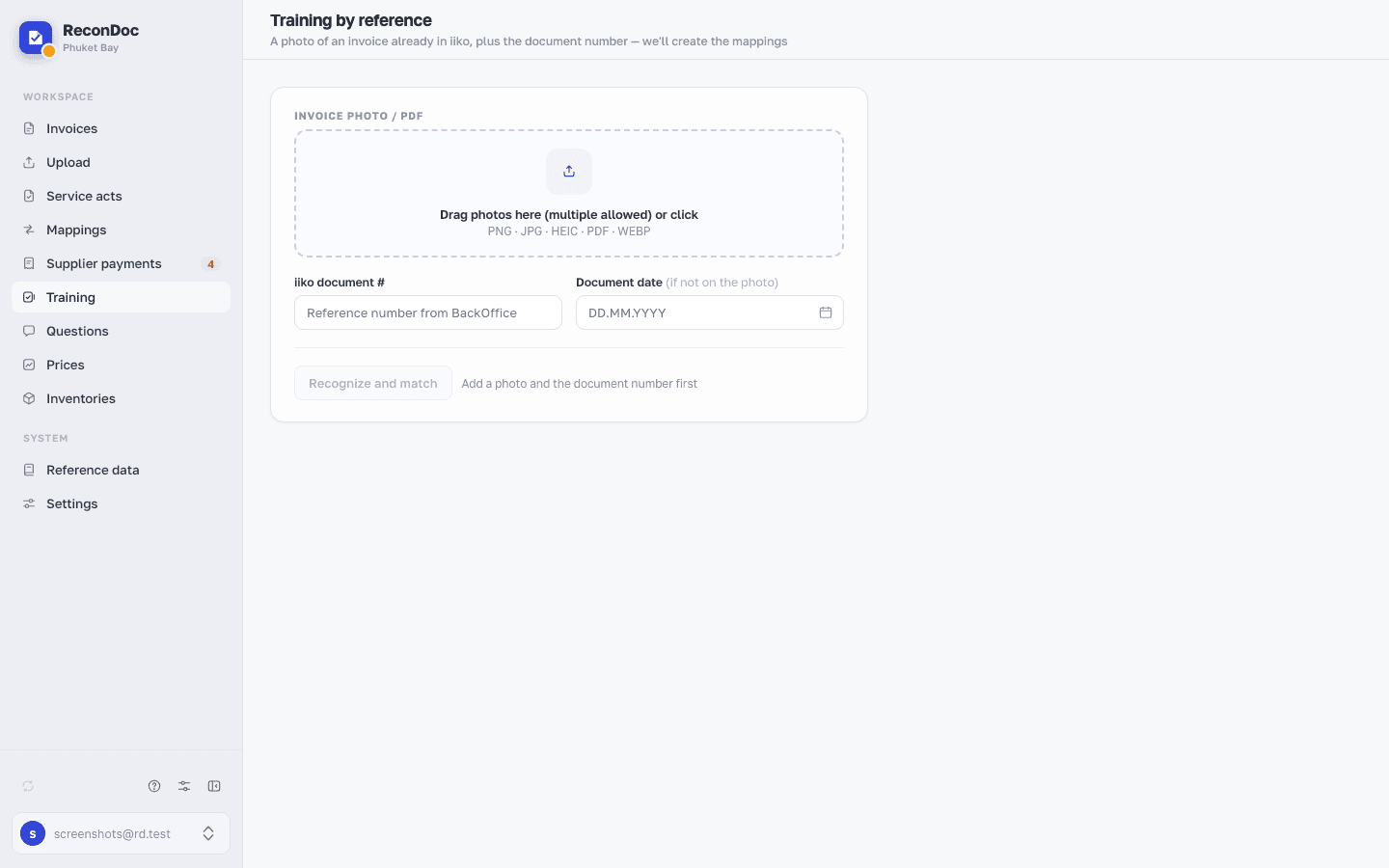
The training screen — a photo of an invoice already entered in iiko and the document number, and the service works out what matches what.
about 2 minUpdated October 14, 2026
The screen opens from the Training menu item, and it helps when an invoice has already been typed into iiko / Syrve by hand but has no matches yet: instead of working through the lines one by one on the invoice card, the service compares the photo directly against the finished iiko document and creates the matches in one batch.
The screen#
 1234
- Invoice photo / PDF — a shot or a file of the same invoice that's already in iiko; you can add several pages of one invoice.
- iiko document # — the accounting number of that document, as it's written in BackOffice; without it the service has nothing to compare the recognized text with.
- Document date — fill it in only if it isn't on the photo itself.
- Recognize and match — starts the comparison; the button stays inactive until at least one photo is chosen and the document number is filled in, and the text beside it says exactly what's missing.
Done. Where next?#
The service then shows the lines of the recognized photo paired with the lines of the iiko document — check the pairs before you save them. How the service finds a match between an invoice line and an iiko product in general is in How product mapping works.
What you do here
What's next
Didn't find the answer, or the guide didn't help?
Ask support