The invoice list
The main screen: every uploaded invoice, its status, and what you can do with it.
about 3 minUpdated October 16, 2026
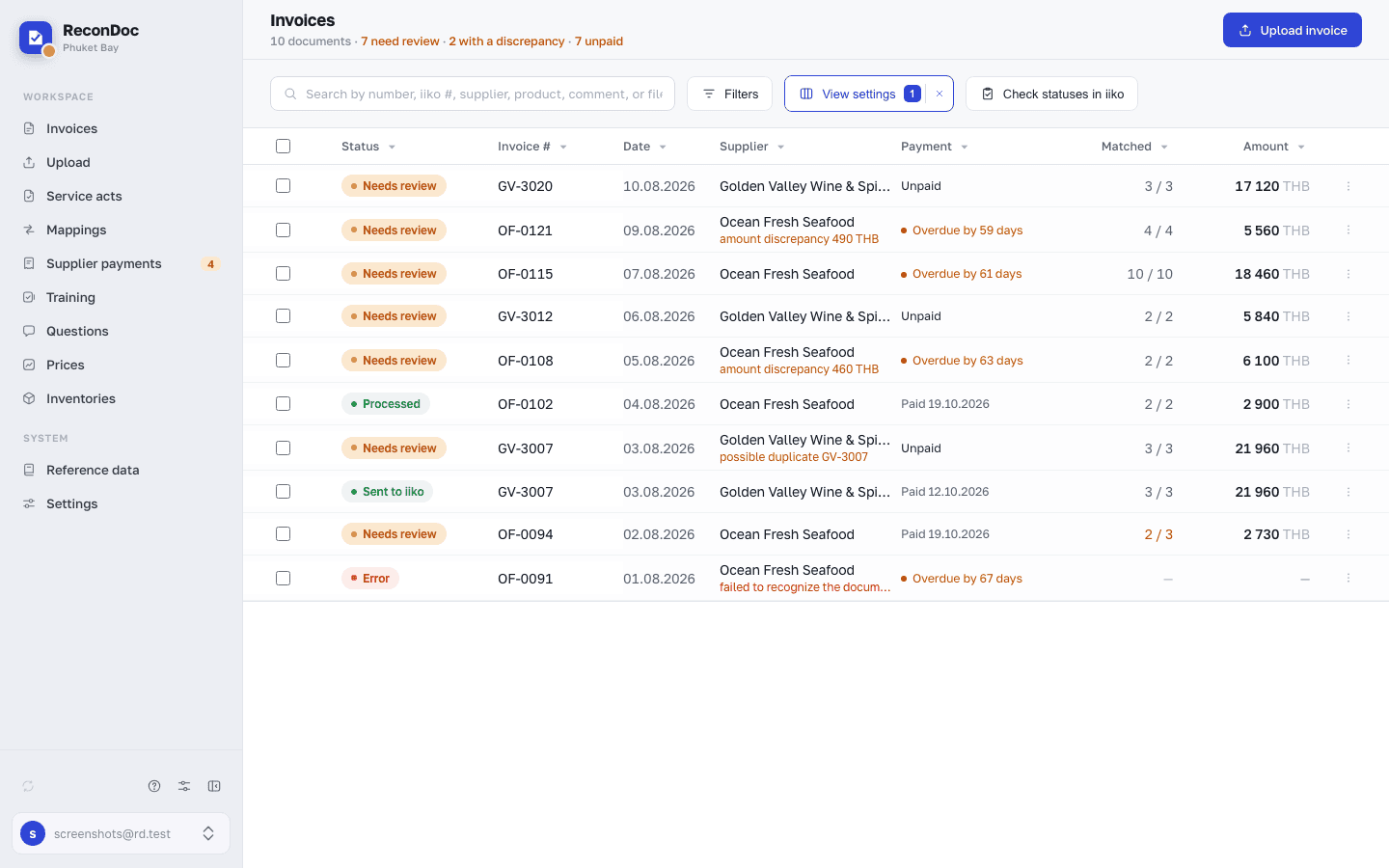
This is where you land after signing in. Each row is one invoice, from an uploaded photo to a document in iiko / Syrve. What to do with an invoice is decided by its status.
The main view#
 123456
- Search — searches by invoice number, iiko document number, supplier, product name in the lines, comment, and file name. Case doesn't matter: "mozzarella" and "Mozzarella" find the same thing. The % and _ characters are searched as ordinary characters.
- Filters — dates, supplier, store, status; the number on the button is how many conditions are applied.
- View settings — compact rows, grouping, table or tiles, the set of columns.
- Check statuses in iiko — refreshes the statuses of sent invoices: whether they have been posted in iiko yet.
- Row checkbox — marks an invoice for a bulk action (recognize again, set supplier, mark, merge, delete).
- Status — which step the invoice is at; the status glossary is below.
Filters#
 12345678
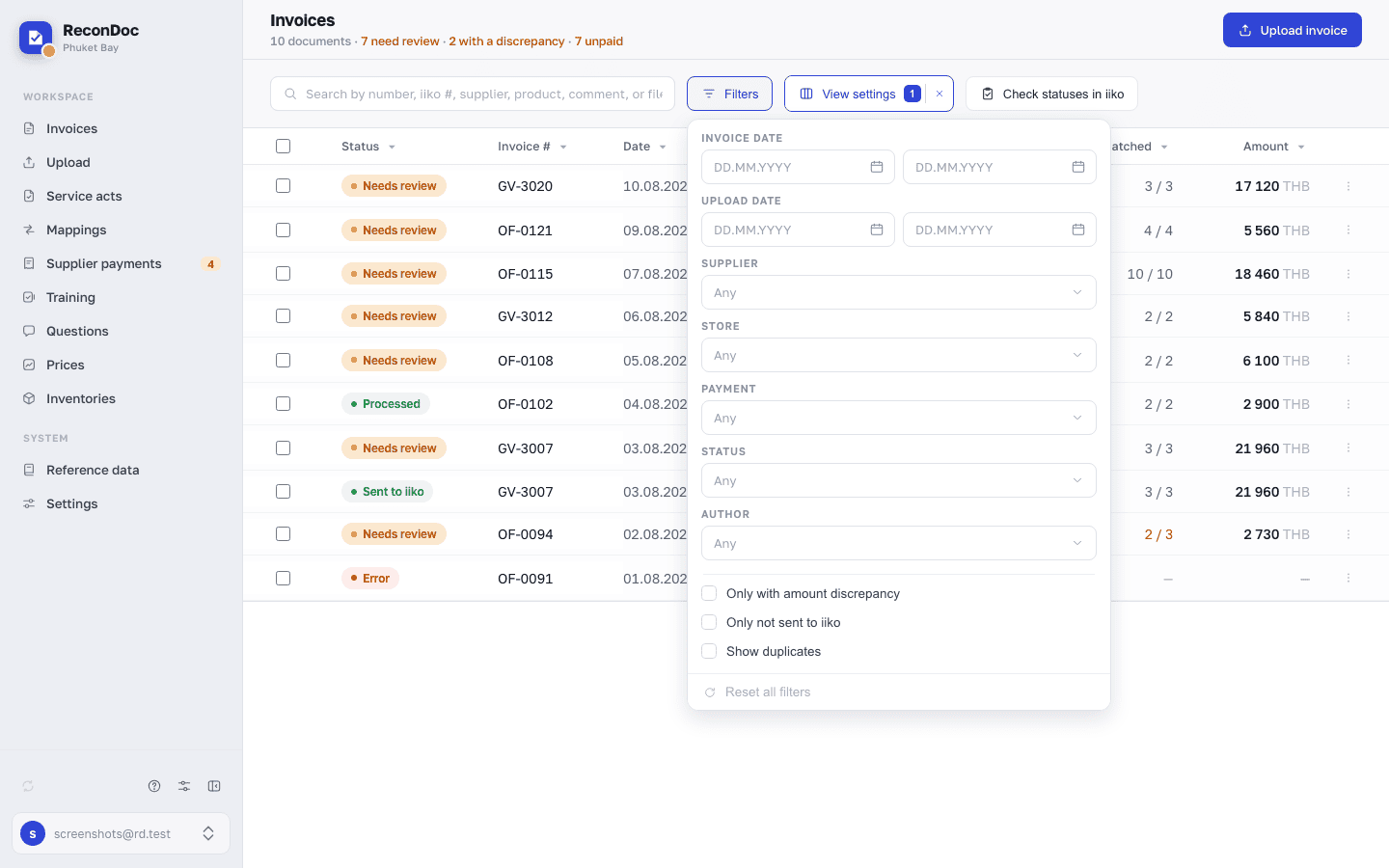
- Invoice date — by the supplier's document date.
- Upload date — when the invoice arrived in ReconDoc.
- Supplier — several suppliers at once; Select all ticks every one of them.
- Store — the invoice's receiving store.
- Status — one status or several.
- Author — who uploaded the invoice.
- Toggles — only with a total mismatch, only not sent, show duplicates.
- Reset all filters — brings back the full list.
View settings#
 12345
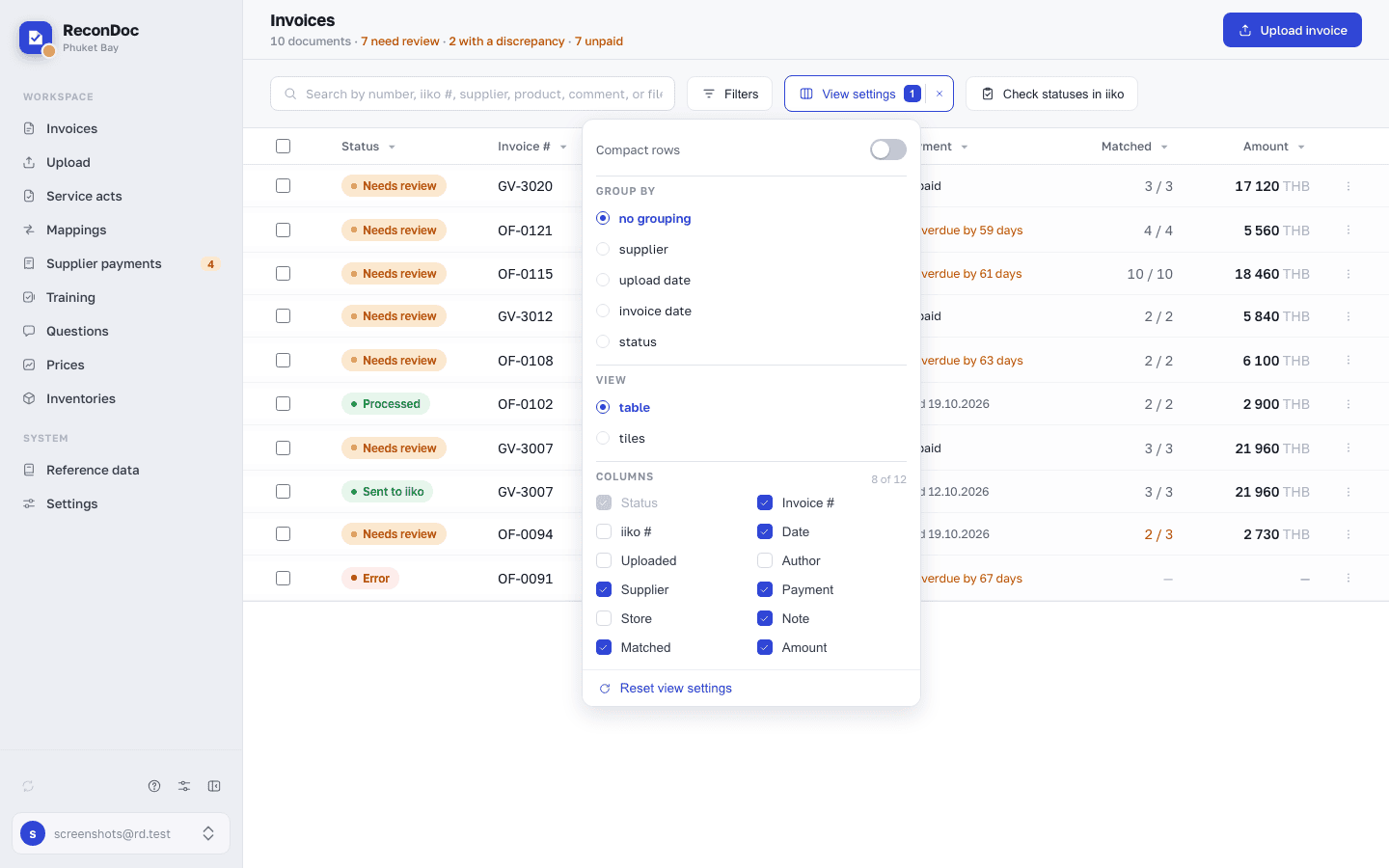
- Compact rows — shorter rows, more invoices on screen.
- Group by — supplier, upload date, invoice date, or status.
- View — a table or tiles with photos.
- Columns — which columns to show; some columns can't be hidden.
- Reset view settings — brings back the default view.
Bulk actions#
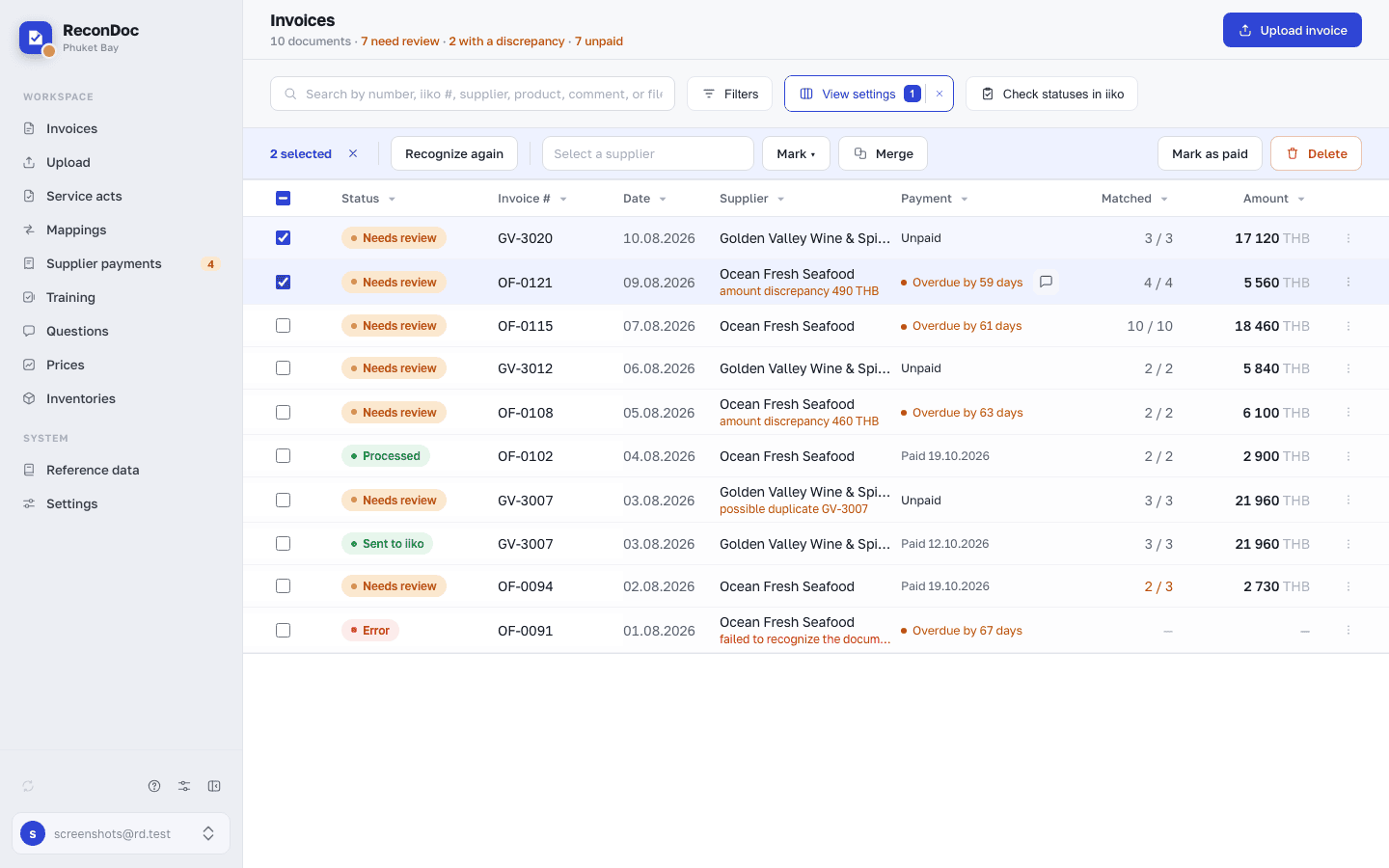
They appear as soon as at least one invoice is ticked. Sending to iiko is never a bulk action — only one at a time, from the invoice card.
 1234567
- How many are ticked — a counter of the selected rows.
- Recognize again — re-recognizes the ticked invoices; it overwrites the lines, including manual edits, and spends your plan's quota — so it asks for confirmation.
- Set supplier — pick a supplier from iiko for several invoices at once.
- Mark — set the status Processed or Other, or clear the mark and send it back to Needs review. Reconciliation can only be set from the document card.
- Merge — glue the ticked invoices into one (when the supplier sent them as separate files).
- Delete — deletes the ticked invoices with no way to restore them.
- Clear selection — the cross clears the whole selection.
Statuses#
| Status | What it means |
|---|---|
| Queued | The photo has been accepted, recognition hasn't started yet. |
| Recognizing | The contents of the invoice are being recognized. |
| Needs review | Recognized; there are unlinked lines or a total mismatch. |
| Sending | The document is being created in iiko / Syrve. |
| Sent to iiko | The document has been created; whether it's posted is shown by Check statuses. |
| Deleted in iiko | The sent document was deleted or not found in iiko; shown as a red badge. It stays in the Sent to iiko group; filters and counters do not change. |
| Duplicate | Looks like an invoice from the same supplier that's already uploaded. |
| Error | Recognition failed, or iiko / Syrve rejected the document — the reason is in the card. |
| Processed | Marked as finished by hand (without sending). |
| Reconciliation | Marked by hand: a payment receipt or reconciliation statement, not an invoice. Not sent to iiko. |
| Other | Marked by hand: the uploaded file isn't an invoice (supplies, receipts, duplicates). Not sent to iiko. |
What you do here
What's next
Didn't find the answer, or the guide didn't help?
Ask support