The invoice card
What every field of the card means — the document header, the lines, the totals check and the discount.
about 5 minUpdated October 16, 2026
The card opens when you click an invoice in the list. This is where a recognized document turns into an invoice for iiko / Syrve: the header, the lines, the totals check and sending.
Actions#
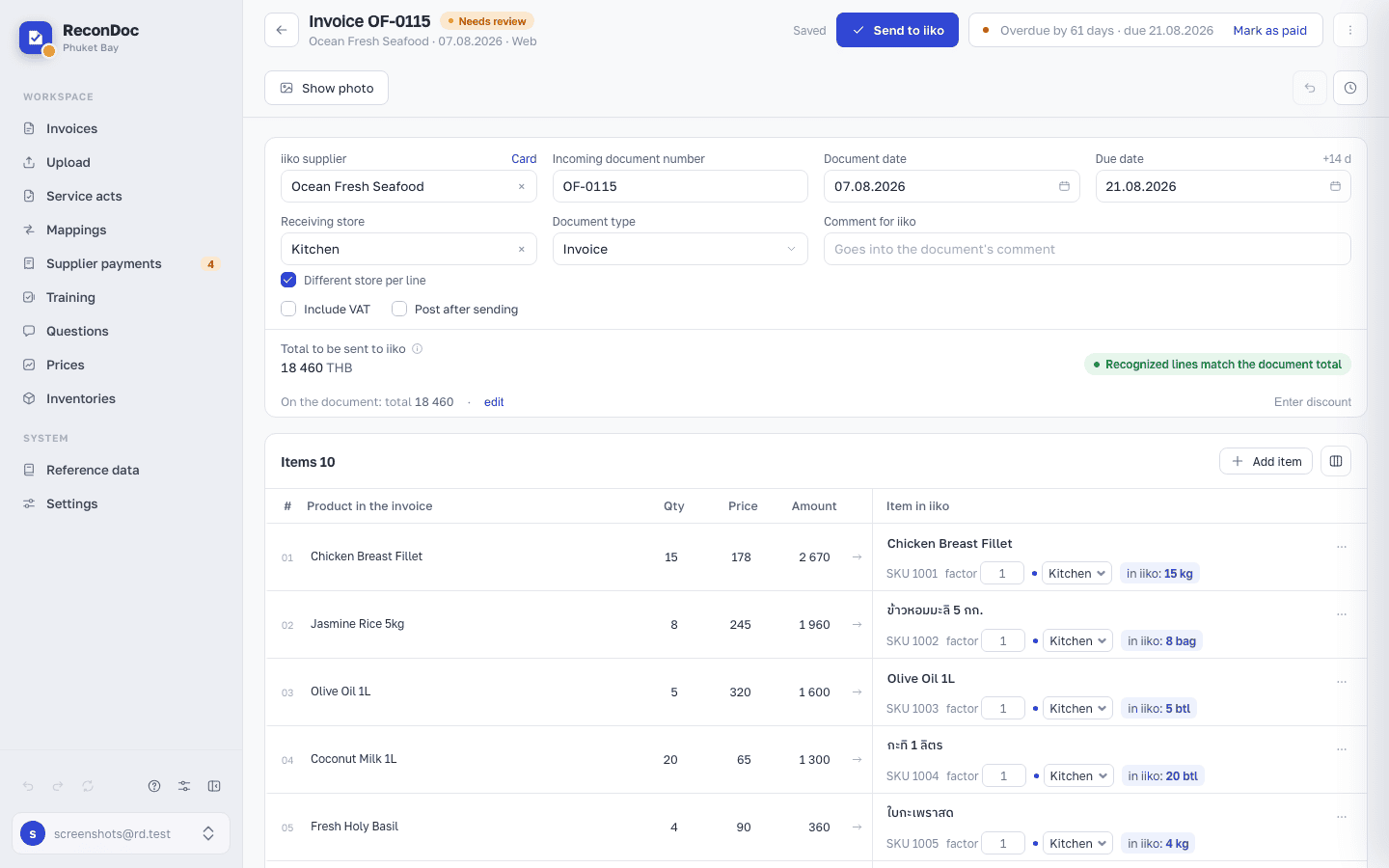 1234
- Show photo — opens the original photo or PDF of the invoice next to the lines, so you can compare by hand.
- Send to iiko — creates an unposted document in iiko / Syrve (or overwrites one already sent, as long as it hasn't been posted). It stays unavailable until the supplier, the store and the document date are set and every line is matched; a totals mismatch does not block the button itself, it only warns.
- Menu «⋮» — secondary actions: Match products for empty lines, Recognize again, Ask colleagues, Delete invoice. Before sending, it also offers Link to an existing iiko document… and Mark as processed…, plus voice entry if the module is enabled. After sending an unposted document, it offers Check status in iiko; if the document was deleted in iiko, linking and marking it as processed are available again.
- Document header — supplier, number, dates and invoice settings; each field is covered in the next section.
The iiko document number and state sit next to the status in the heading, for example, "№ 8219 · posted". Hover over them to see the sending time and the conception, if used. For a posted document, a regular Check status in iiko button replaces sending changes, with the note Edits stay in ReconDoc. If the document is missing from iiko, the status becomes a red Deleted in iiko badge.
When sending is unavailable, the reason is shown beside the button. Click it to go to the relevant field; N more takes you to the next reason.
The document header#
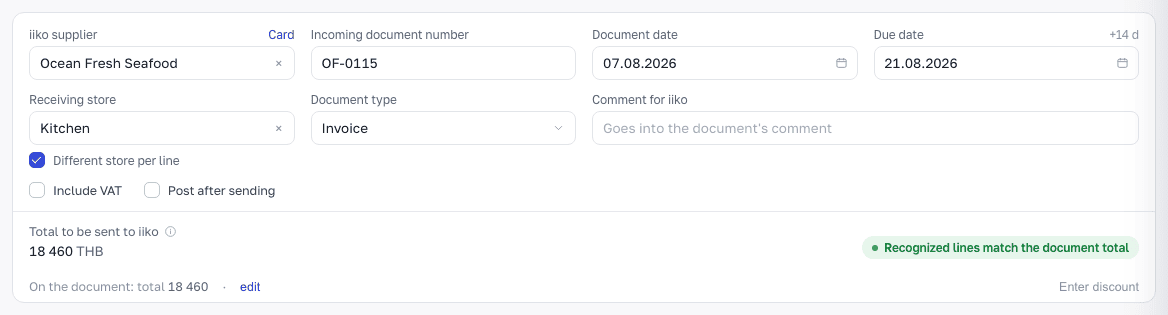 123456789
- iiko supplier — the one ReconDoc picked by the name on the invoice; the hint beside the label shows the name as it was written in the document.
- Incoming document number — the number from the supplier's invoice; it goes to iiko as it is.
- Document date — the date of the invoice; iiko dates the delivery by it.
- Due date — the document date plus the supplier's payment terms; you can correct it by hand. To the right of the label, +N d or manually · reset explains the date. Reset restores the calculated date; without payment terms, manually · clear clears the date and hides the field.
- Receiving store — where every line is received; the supplier's store by default.
- Different store per line — turns on a store picker inside each line.
- Include VAT — on if VAT is enabled for the supplier or the restaurant, or if a tax was found in the document.
- Post after sending — the document is created already posted; with it off, it's created as a draft. The checkbox is hidden after sending; if the document was deleted in iiko, it becomes available for resending.
- Comment for iiko — goes into the document's comment.
The Document type field is in both the invoice card and the service act card. The list has four options, each with a hint:
- Invoice — a normal goods receipt in iiko / Syrve;
- Service act — rent, cleaning, repairs; the document goes to the Acts section. The option is shown only if acts are enabled for the restaurant and Cloud API is connected;
- Reconciliation — payment receipts, reconciliation statements;
- Other — supplies, receipts, duplicates.
Reconciliation and Other stay in the Invoices section, are not sent to iiko / Syrve, and are left out of duplicates and payments.
Switching between Invoice and Service act moves the document to the other section. ReconDoc asks you to confirm: the document is recognized again with the new type's rules, and manual edits to the lines are lost. Once you confirm, you go back to the page you came from and a notice appears at the bottom right: "Document moved to Acts" (or "to Invoices") with an "Open document" link. If the lines have already been read as the right type, there is no repeat recognition.
Moving an act to Reconciliation or Other takes it to Invoices with that mark, without new recognition. If you need to note the reason, put it in the comment. Going back from Reconciliation or Other to Invoice or Service act recognizes the document again if its lines were read as a different type.
When the type can't be changed:
- after sending to iiko / Syrve, and while sending is in progress, the field is hidden: the type is shown in the card title;
- the field is read-only (hover to see why) while the document is being recognized, if it is marked Processed (remove the mark first), if an act's sending hasn't finished, and in any status other than Needs review, Error and Duplicate (or an already set Reconciliation or Other);
- if a supplier payment is linked to the invoice, only the Service act option is unavailable: the reason is written under it. To turn the invoice into an act, unlink the payment in the Payments section first. Reconciliation and Other stay available.
Hover over the Include VAT or Post after sending label to read its explanation; there is no separate info icon.
The lines#
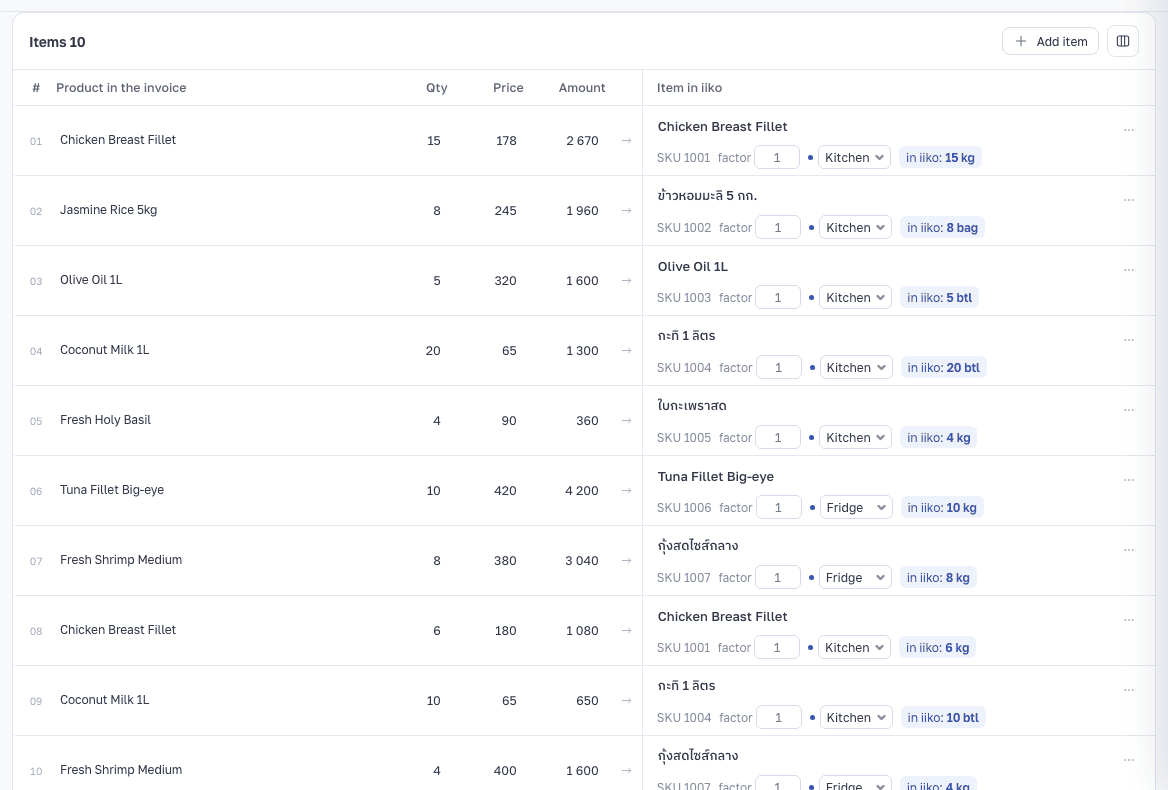 1234567
- Table heading — how many lines there are in total and how many are already matched to iiko products.
- Product in the invoice — the name as the supplier wrote it; under it, the translation, if it was recognized.
- Match — the product in iiko: the SKU, the container factor and the container; on the right, a blue "in iiko: N" badge with the quantity that will go into the document; by mapping means the match was saved earlier.
- Quantity — the quantity from the supplier's invoice.
- Price — the unit price from the invoice.
- Amount — the line amount; you can correct it by hand if it was calculated wrong.
- Line store — a separate store for this line; the field only appears when Different store per line is on.
Totals and the check#
Under the last row of the table there's a Total row with the sum of the quantity, the amount and the VAT across the columns. In the document header above the table is the summary for the whole document:
 1234
- Total — the amount that will travel into the document: calculated from the lines plus the computed VAT.
- The check's verdict — when everything matches and no discount banner needs a decision, green text reading "Recognized lines and VAT match the document total" ("Recognized lines match the document total" without VAT). When something is off, it briefly names the reason: how much the lines are below or above the total, an error in a particular line, VAT that differs from the computed one, or a lost thousands separator. On documents already sent, the mismatch texts are shown in grey.
- On the document — the total and the VAT from the supplier's document, as they were recognized.
- edit — opens the printed-totals fields; correcting them fixes the check and does not travel into accounting.
A discount off the total#
If a discount off the total was recognized from the photo and is not yet included in the lines, a Discount on total: … banner appears inside the card, below On the document, with two actions: Ignore erases the amount without a trace, Apply to lines opens the panel below. If no discount was recognized, the panel is opened by the Enter discount button — that's how a discount is entered by hand.
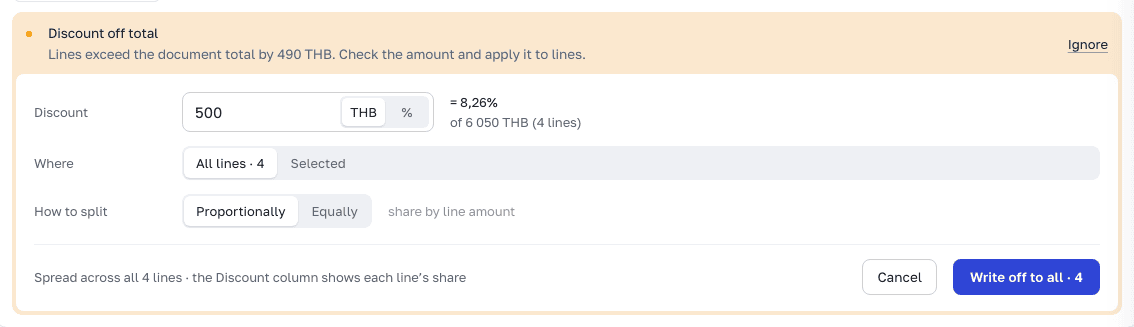 12345
- Discount amount — entered by hand or already recognized from the photo; the currency is the document's. The % switch next to it lets you enter the discount as a percentage: on the right you see how much that is in money and which line total it is taken from.
- Where — All lines or Selected; you mark the selected ones with a checkbox in the left column of the table.
- How to split — Proportionally to the line amounts or Equally between them.
- Hint — how many lines will get the discount; the Discount column shows how much is written off to each.
- Write off to all · N / Write off to selected · N — applies the discount; while there are unsaved edits the button is off, with the hint Save your changes first.
What you do here
- Your first invoice: from photo to a delivery in iiko
- What to check after recognition
- Editing an invoice: lines, quantities, prices
- Replacing a photo or uploading a correction from the supplier
- Containers and conversion factor: when the quantity goes off
- Sending an invoice to iiko
- How to fix an invoice that's already been sent
- Products didn't get matched, lines are empty
- The wrong product got matched
- Less than half got recognized
- The total doesn't match
- Quantity is off by a multiple
- Sent it, but there's no document in iiko
- Went to the wrong store
What's next
Didn't find the answer, or the guide didn't help?
Ask support