Editing an invoice: lines, quantities, prices
What you can change by hand, how amounts recalculate, and where the changes get saved.
Where it is: The invoice card →
about 4 minUpdated October 14, 2026
Anything the recognition got can be corrected by hand. Changes save automatically about a second after your last keystroke.
Careful
Autosave only writes to ReconDoc. Nothing goes to iiko until you click send. If the invoice was already sent, edits still stay here — updating the document in iiko takes a separate action.
Quantity and price#
Edit right in the cell. The line amount recalculates on its own.
Important
Receipts often don't print a price at all — then the service works it out from the line amount and the quantity. That's why editing the quantity also changes the price: the amount is treated as the source of truth.
Both a period and a comma work as the decimal separator, whichever is easier.
Lines#
- Add — if an item wasn't recognized at all.
- Delete — if a line doesn't belong, say a table header ended up among the items.
- Reorder — drag them so the order matches the paper.
Tip
Made a mistake? There's Undo. It reverts the last action on the lines, deletions included.
A discount in percent#
If the paper shows the discount on the whole invoice as a percentage, there is no need to convert it into money. On the discount panel (Apply to lines, or Enter discount if no discount was recognized), switch the currency next to the Discount field to % and type the percentage. On the right you see how much that is in money and which line total it is taken from.
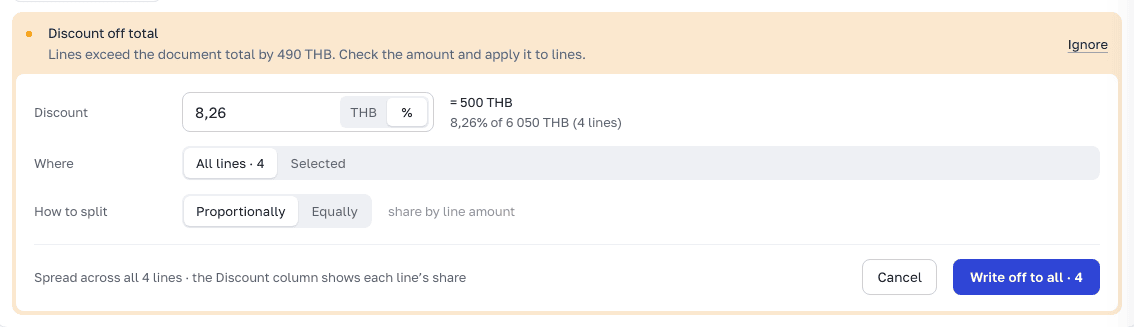
The percentage is taken from the lines that get the discount: if you choose Selected, it is taken from the checked lines. Then click Write off to all or Write off to selected.
The photo next to the table#
The document panel opens on the right. You can zoom in, pan, rotate the page, and crop out what you don't need. It's not decoration: checking numbers by eye against a tiny image is pointless, but zoomed in, it's fast.
The page order of a multi-page invoice is also changed there, by dragging. The same panel is where you replace a page, add a missing one, or attach a file for reference — see Replacing a photo or attaching a corrected document.
Names not in English#
If the supplier prints names in another language, the lines get a translate button. Only what's on your screen gets translated — what goes to iiko is your product from the catalog, not a translation of the supplier's name.
Done. What's next?#
The lines are in order — next is how to link them to your products so it happens on its own next time.
What's next
Didn't find the answer, or the guide didn't help?
Ask support