What to check after recognition
A checking order that saves time — header first, then lines. Not the other way around.
Where it is: The invoice card →
about 4 minUpdated October 21, 2026
The most common way a newcomer wastes time is diving straight into the lines. There can be thirty lines and four header fields, and a mistake in the header makes all the work on the lines worthless.
Here's the order.
1. Supplier#
Check this first. Which mappings apply to the lines depends on the supplier — mappings live inside the pair "restaurant + supplier."
If the supplier came out wrong, fix it before working on the lines — after you change the supplier, matching has to run again.
Tip
When you pick the supplier by hand, the service remembers the name it's written as on the document. Next time, that same supplier gets identified on its own.
2. Date#
It goes to iiko as the delivery date. If the date on the document is illegible or missing, the service leaves the field blank and shows a warning — an empty field beats a made-up number.
3. Document total#
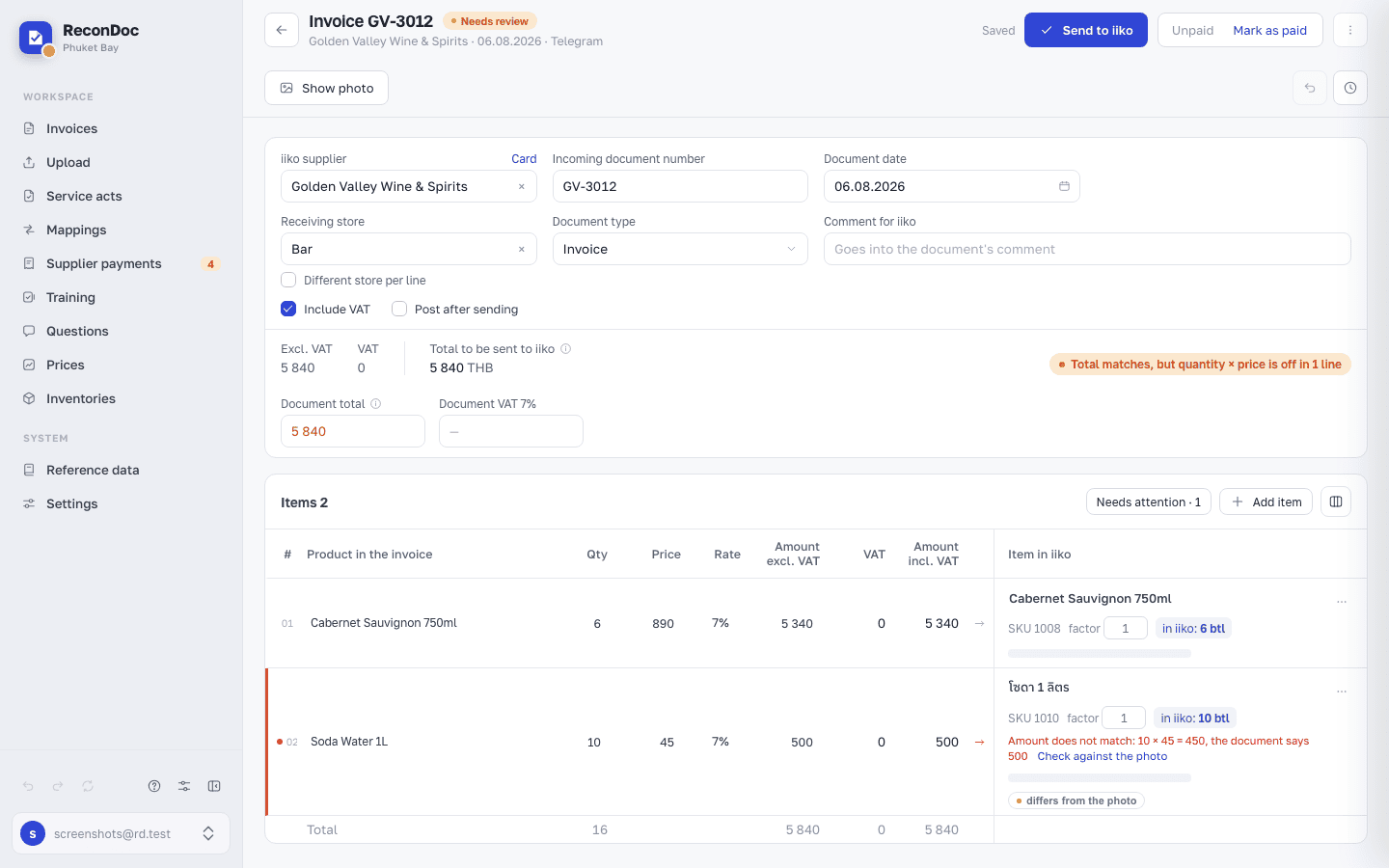
The service adds up its own total from the lines and compares it with the document's amount. A mismatch shows up as a separate mark.
Important
A small mismatch isn't always a mistake. A discount on the whole document, VAT, and prices printed in thousands all produce a predictable difference. See why totals don't match for the breakdown. A discount printed as a percentage can be entered as is — see Editing an invoice.
4. Number of lines#
Count the items on the document and in the table. This is the only check that catches a lost page on a multi-page invoice: the total can look plausible while a third of the items are missing.
5. And only now, the lines#
Go through the hints the service puts on lines by itself:
| Mark on the line | What it means |
|---|---|
| Looks like a duplicate | The name repeats another line, but the SKU is different |
| Not in history | This SKU hasn't shown up in mappings, price lists, or past invoices |
| Not on the photo | A second recognition pass didn't find this line on the document |
| Differs from the photo | The second pass read different numbers on this line |
| Above the price list | The price is higher than the supplier's price list by more than the set threshold |
Each mark is a reason to look closer at the line, not a sign that something's broken.
Lines without a price#
If the invoice has lines with no price (for example, the supplier sent a document without prices, such as a transfer note), a "The invoice has no prices" notice appears above the table. The "Pull prices from iiko" button (or "from Syrve") fills only the empty lines: the price comes from past receipts of the last 180 days, first from the same supplier, then from any other. It never changes printed prices, and it skips lines that are not matched yet, so match them first.
A price filled this way carries a small mark: hover it to see the tooltip "Price from a past receipt". The mark means the price came from history, not from the paper, so check it before sending. As soon as you edit the price or the amount of the line, the mark goes away. Pulling prices writes nothing to iiko: the invoice goes there only when you press the button.
6. How much goes into accounting#
Under every matched line there is a blue in iiko (or in Syrve) badge: how much of the product, and in which unit, ends up in your accounting system. The total is in bold, and if a pack size is chosen, the breakdown sits next to it: how many packs of which size.

Careful
The green text under the total ("Recognized lines match the document total") only means that the money matches. It does not check quantities or units: 8 packs of 200 g and 8 kg give the same amount. Before sending, run your eye over the blue badges, especially for products sold by weight or in packs. If a wrong quantity already went out, see Quantity is off by a multiple.
Done. What's next?#
Found something to fix — next is how to edit lines, quantities, and prices.
What's next
Didn't find the answer, or the guide didn't help?
Ask support