Replacing a photo or uploading a correction from the supplier
How to upload a corrected invoice from the supplier, replace or add a page, or attach a file for reference — including on an invoice that has already been sent.
Where it is: The invoice card →
about 5 minUpdated October 14, 2026
The supplier sent a corrected invoice, a page came out crooked, or one page was missed — the photos in an invoice can be fixed. Even after the invoice has gone to iiko: the old pages aren't lost when you do.
Where the photos live#
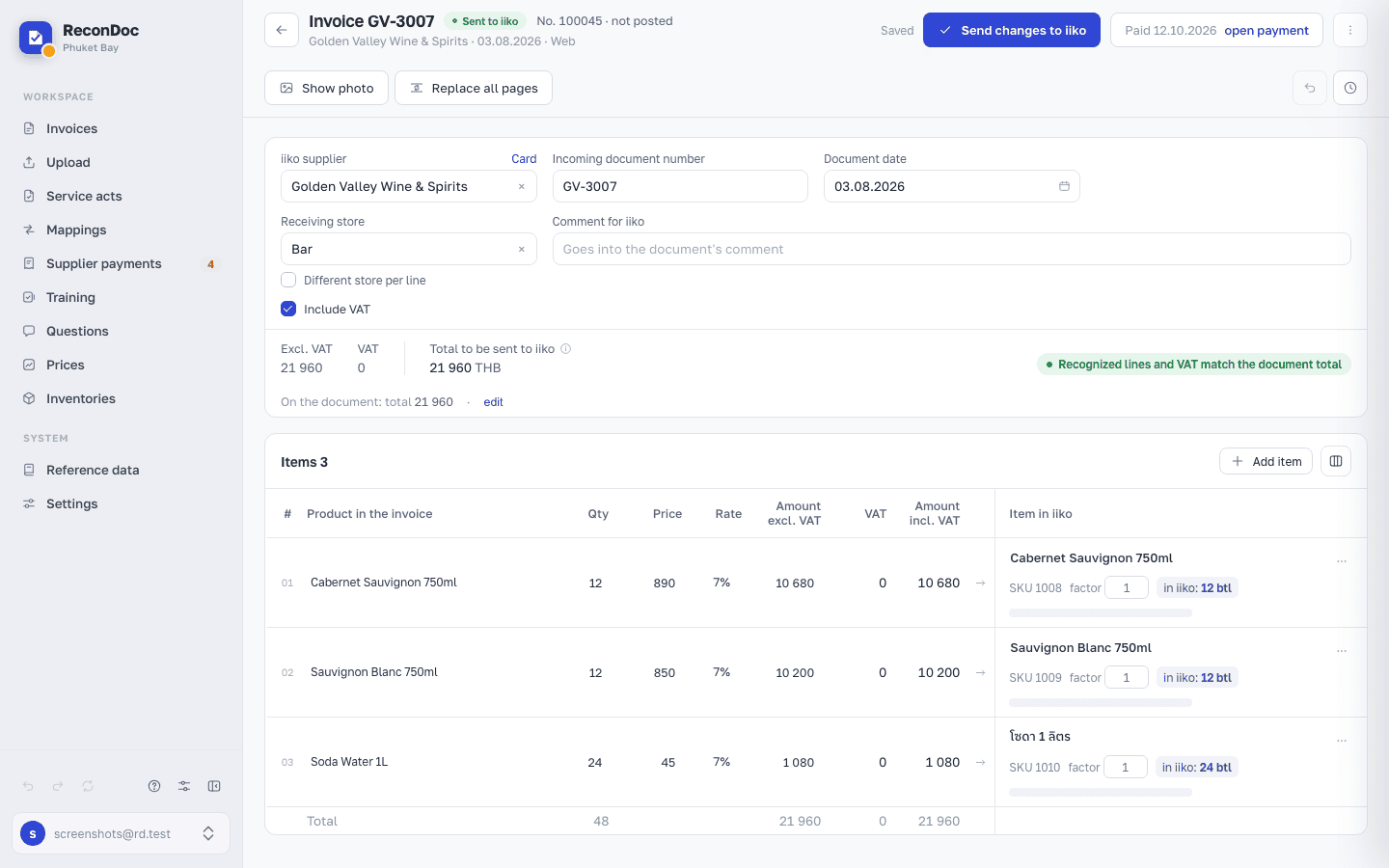
On the invoice card, click Show photo — a panel with the document opens.
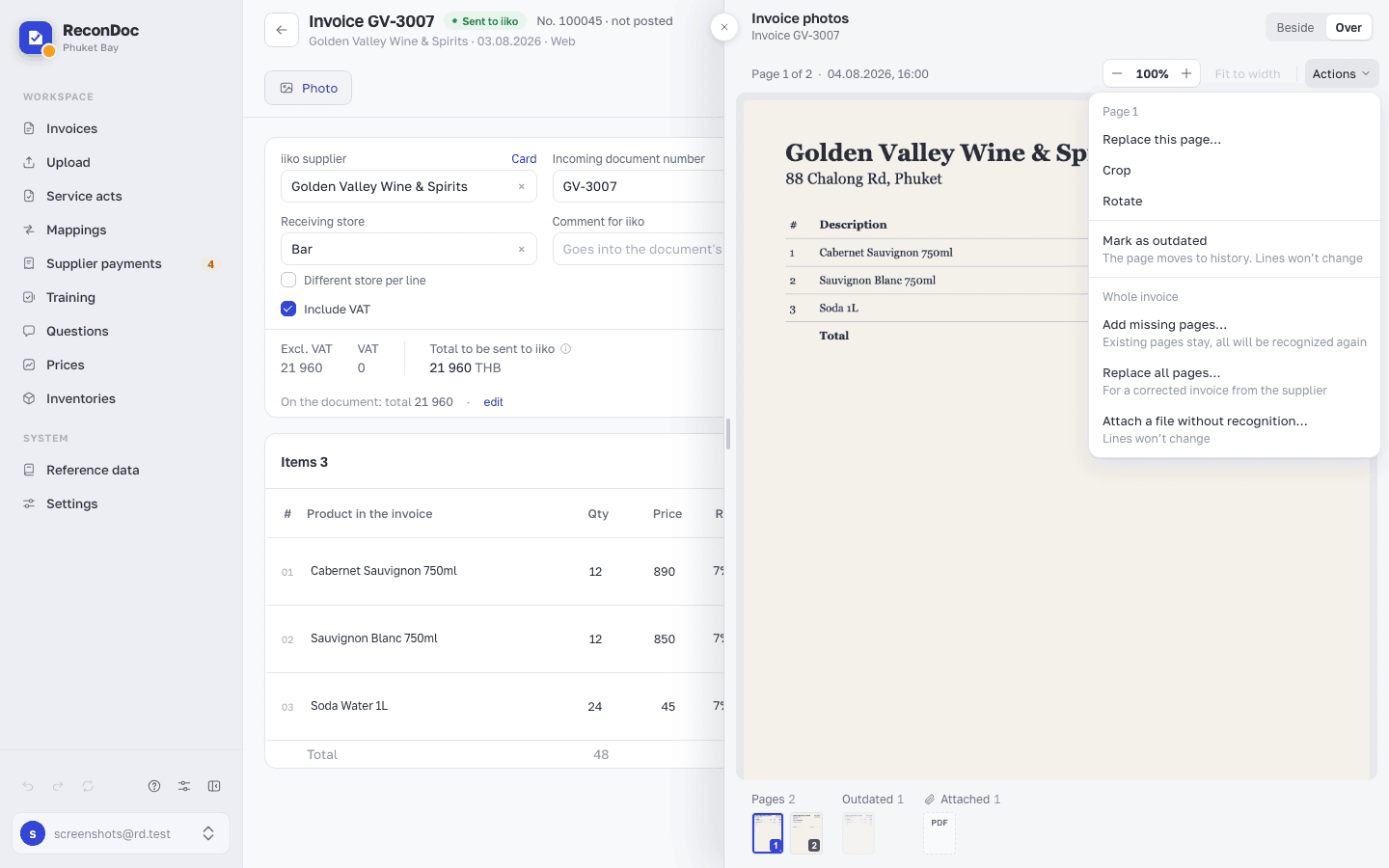
- Above the image — a bar: the page caption, zoom and Fit to width. Viewing and zooming always work, even when files can't be changed.
- On the right of the bar — the Actions menu with two groups. Page N — what to do with the selected page: replace, crop, rotate, remove. Whole invoice — add pages, replace all pages, attach a file.
- At the bottom — the page rail, split into groups. It appears once there are two or more files.
- On a computer the panel sits Beside the table or Over it — the switch is in the panel header. Close the panel with the round × on its left edge or Esc. On a phone the Actions menu opens with the ⋯ button.
The supplier sent a correction#
If the supplier reissued the whole invoice — the numbers, the number or the date changed — don't swap pages one by one. Replace all pages at once: the new files take the place of the current ones, and the invoice is recognized again, once.
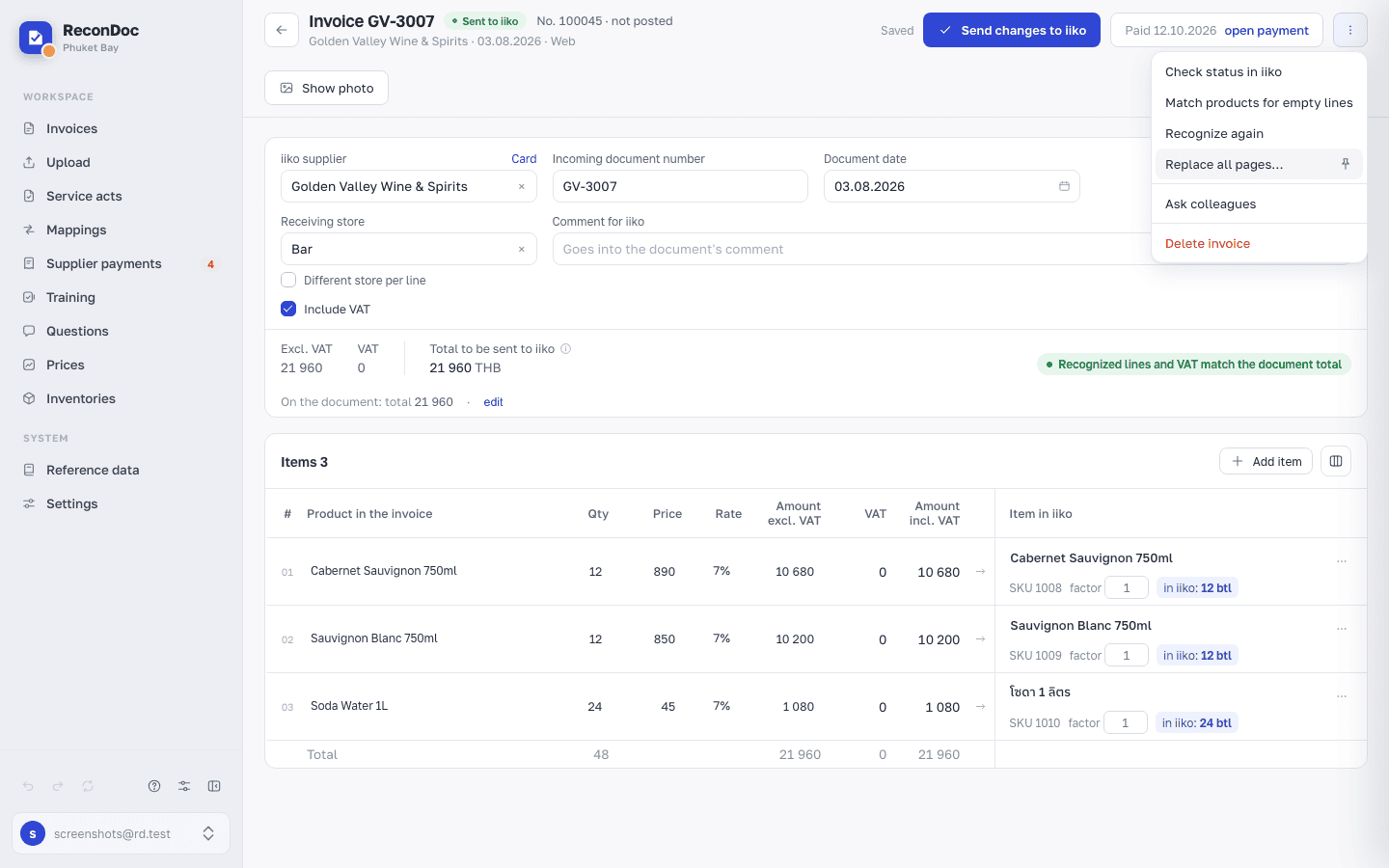
- Open Replace all pages… — either way works:
- the ⋮ menu in the top right of the invoice card;
- Show photo → the Actions menu → the Whole invoice group.
- Drag the files of the corrected invoice into the window or pick them on your computer. JPG, PNG, HEIC, WEBP and PDF are accepted, up to 25 MB per file. Change the page order by dragging the handle to the left of a file.
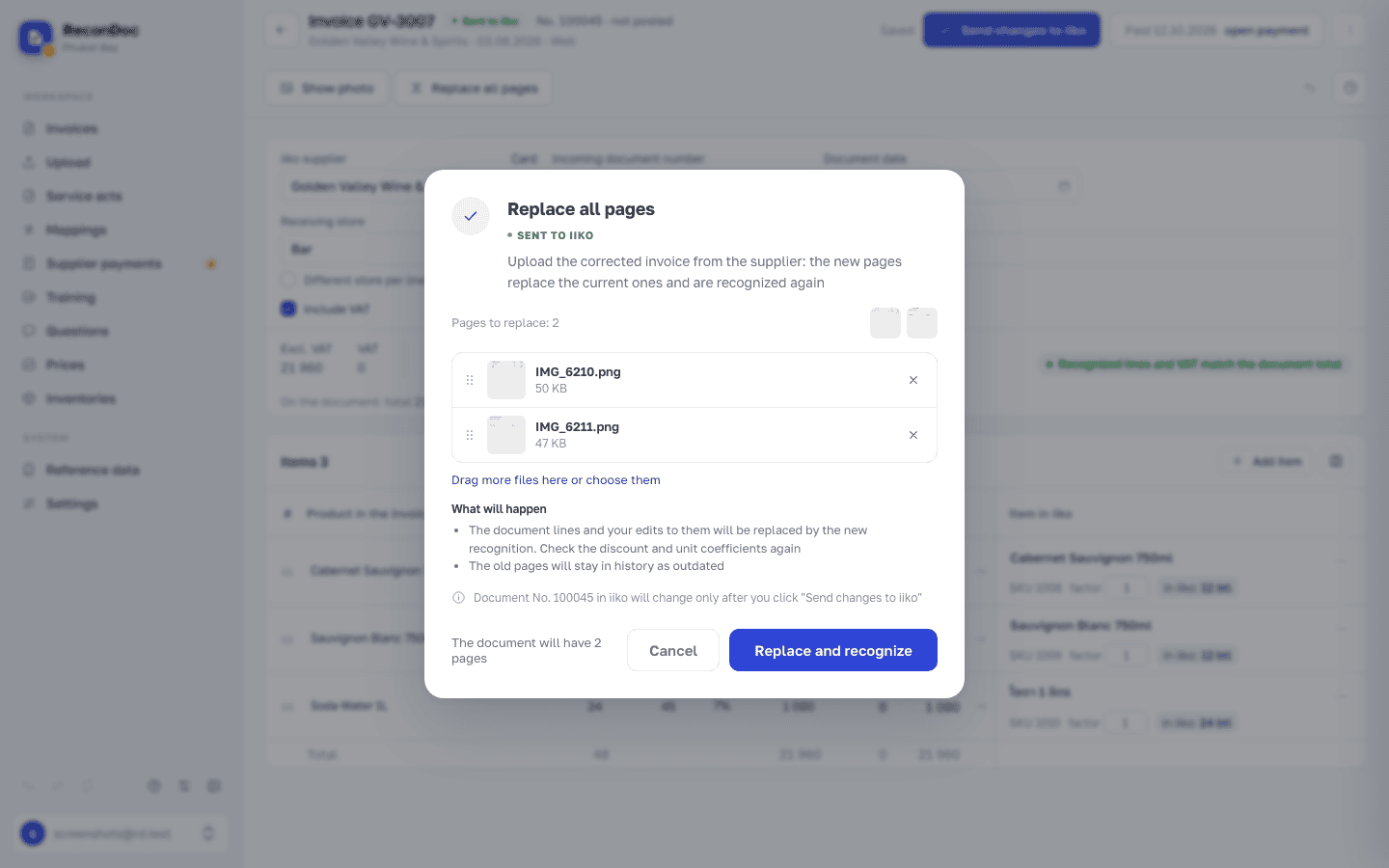
- Click Replace and recognize.
What happens:
- only the current pages are replaced. Files in the Attached group stay where they are;
- if the invoice hasn't been sent yet, the old pages are deleted. If it has, they move to the Outdated group, and you can always open them;
- the document lines are recognized again, and your edits to them are lost. Check the discount and unit factors once more.
When recognition finishes, a banner appears above the header: what changed in the number and date — before and after.
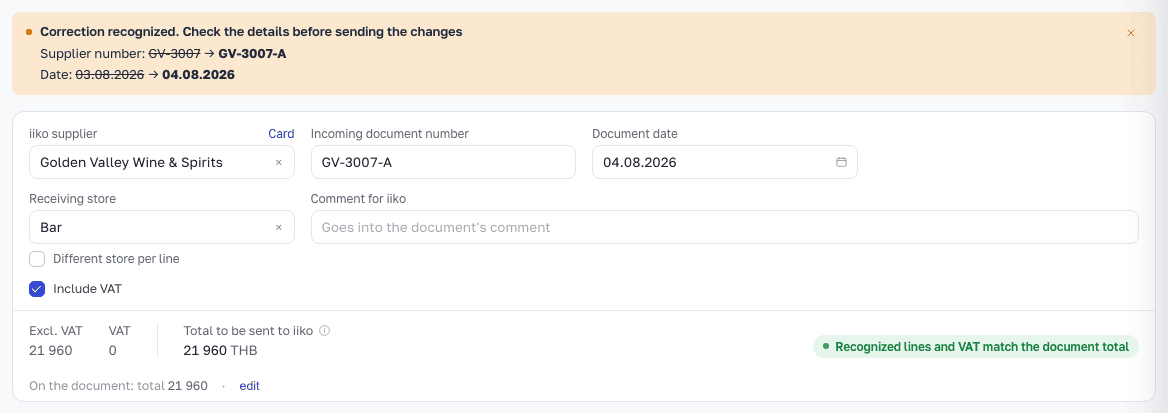
Careful
Nothing changes in iiko until you click Send changes to iiko yourself. A posted document has to be unposted in BackOffice first; then click Check status in iiko on the card — after that the pages can be replaced.
Tip
Corrected invoices come often? Click the pin to the right of the menu item — a Replace all pages button appears next to Show photo. Click the pin again to put it back into the menu.
Add a page or attach a file#
In the Actions menu, the Whole invoice group has two ways to add a file, and the difference matters:
- Add missing pages… — the file becomes a regular page of the document. The existing pages stay, and the whole invoice is recognized again.
- Attach a file without recognition… — the file simply sits with the invoice. No recognition runs, and the document lines stay untouched.
Tip
If you've already fixed the numbers by hand and just want the right piece of paper stored next to the invoice, attach the file without recognition. If the supplier reissued the invoice, replacing all pages is easier.
Replace a single page#
Open the page you need and choose Actions → Replace this page… — the new file takes the same spot in the document. For a PDF the item reads Replace this PDF…: the whole file is replaced, with all its sheets.
Careful
Replacing and adding a page both start recognition again: the current lines get overwritten with whatever is read from the new images. Manual corrections will have to be made once more.
Before sending and after#
While the invoice hasn't been sent, an unwanted page can be removed entirely: Actions → Delete page. A replaced page is also deleted for good.
After sending there is no delete. Instead there is Mark as outdated: the page goes to history, and the document lines don't change. Replaced pages also go to history instead of being deleted. That's deliberate — an invoice that has already become a delivery in your accounting system shouldn't quietly change the paperwork behind it.
Important
The only page can be neither deleted nor marked as outdated — an invoice can't be left without a document. Upload the new one first, then remove the old.
When files can't be changed#
If an action isn't available right now, a banner above the image says why:
- recognition in progress — wait until it finishes;
- the document is posted in iiko — unpost it in BackOffice and click Check status in iiko right on the banner;
- view only — your role can't change files. The panel won't show the Actions menu.
The three groups on the rail#
- Pages — the document itself, numbered pages. This is what the invoice is recognized from. Drag to change the order.
- Outdated — dimmed, unnumbered: pages that were replaced or removed. They never go into recognition, but you can always open them.
- Attached — with a paperclip: files attached without recognition.
Above an outdated page you can see when it was replaced. If another page took its place, there's a Show replacement link. Removed the wrong one? Click Restore: the page is added to the current ones, and the lines don't change.
Who changed what#
Every action on the photos is written to the document history: who added, replaced, marked or restored a page or replaced all pages, and when. On a sent invoice, a line appears above the table of lines — "Photos changed after sending" — with the date, the name, and a link to the history. It doesn't go away after you send again: it records a fact, it isn't a warning about a mistake.
This doesn't change the document in iiko#
Photos live in ReconDoc only — what goes to the accounting system is numbers, not images. While you swap pages around, the document in iiko stays as it was.
Careful
If the numbers changed after replacing pages or uploading a correction, the document in the accounting system has to be updated separately, with the Send changes to iiko button on the card.
Done. What's next?#
The photos are in order. If the numbers in an already sent document have drifted apart, next is how to fix an invoice that was already sent.
What's next
Didn't find the answer, or the guide didn't help?
Ask support