Sending an invoice to iiko
What happens when you send it, what's worth checking beforehand, and what to do if it's rejected.
Where it is: The invoice card →
about 4 minUpdated October 14, 2026
Sending creates an incoming invoice in iiko. That's the only thing the service writes into your database.
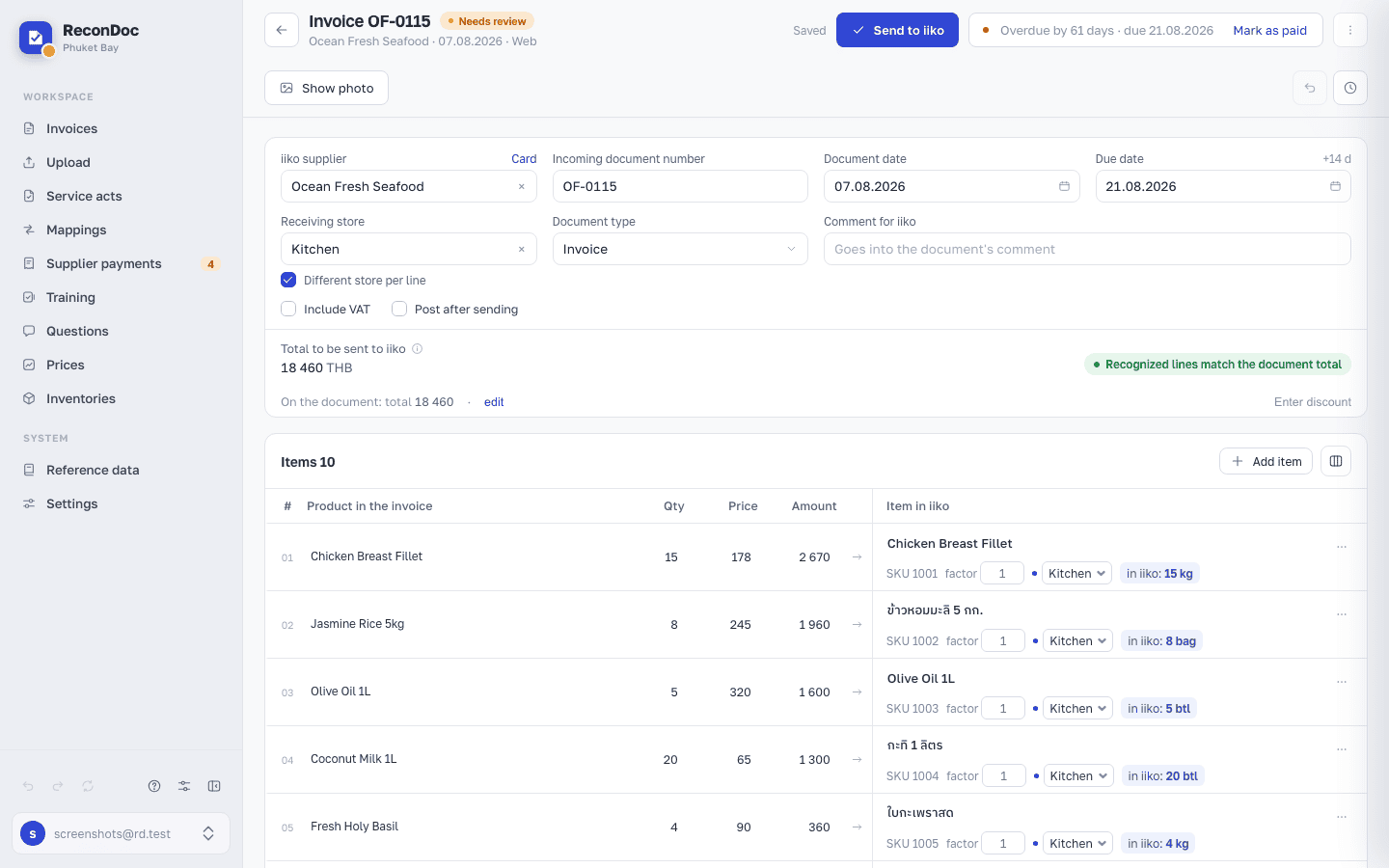
What to check before clicking#
- The total matches, or the mismatch is explained.
- Every line is linked to a product — an unlinked line won't go through.
- The store is set correctly.
- The date is the one you need in your books.
If sending is unavailable, the reason is shown beside the button. Click it to go to the field that needs attention.
Tip
Link to an existing iiko document… in the card menu, before you send, looks there for similar documents — by supplier, date, amount, and the tail of the number. Useful when someone else on shift might have already entered the invoice: cheaper to check than to delete a duplicate in BackOffice afterward.
What goes to iiko#
| Field | Where it comes from |
|---|---|
| Supplier | The invoice header |
| Delivery date | The document's date |
| Store | The line's store, or the header's store if none is set |
| Items | Product, quantity adjusted for container and factor, price |
| Comment | The text from the "Comment for iiko" field on the card; if it's empty, a note that ReconDoc created the document |
Important
The service doesn't send a document number — iiko generates its own. The supplier's invoice number goes into a separate field, as it should.
If sending fails#
The service shows the reason. Common ones:
- No free iiko license — every slot is taken by staff in BackOffice. Wait, or ask someone to log out.
- A line without a product — link it or delete it.
- Looks like a duplicate — the service found the same document already in iiko. Check it, and if it really isn't a duplicate, send it anyway.
Careful
Don't click send again if you're not sure whether it went through. Open iiko and check. Sending again in an unclear situation is the easiest way to end up with two identical deliveries.
After sending#
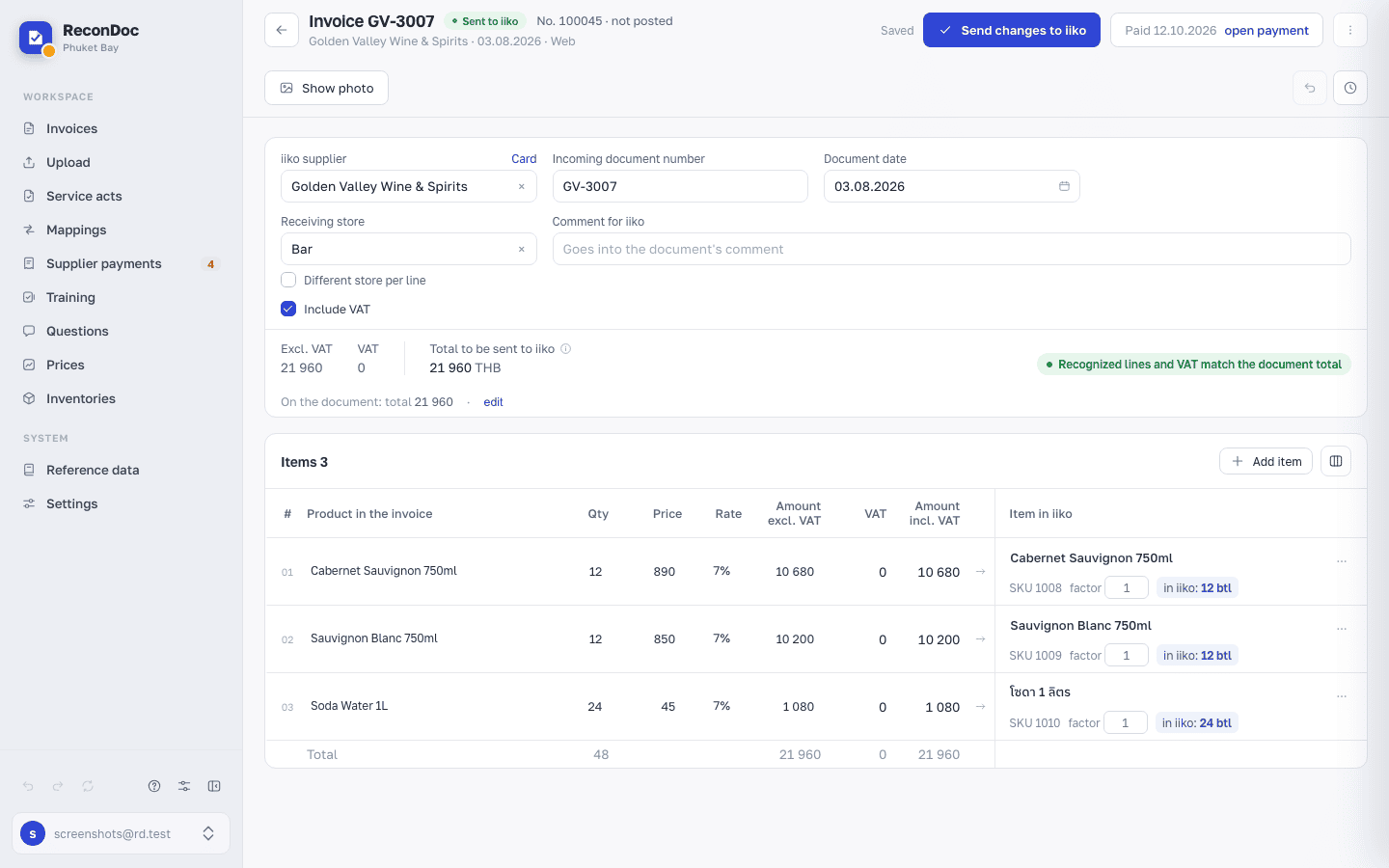
The iiko document number and state appear beside the status in the heading. Hover over them for the sending time and conception. For a posted document, Check status in iiko replaces sending changes. If the document was deleted in BackOffice, the next status check shows a red Deleted in iiko badge.
Done. What's next?#
What's left is deciding whether the document should be posted right away.
What's next
Didn't find the answer, or the guide didn't help?
Ask support