Settings: bots and messengers
The Bots & messengers screen: the ReconDoc shared bot and linking Telegram, LINE and MAX to your account, groups, the restaurant's own bot.
about 3 minUpdated October 17, 2026
The Bots & messengers screen opens from the side menu (Settings, the Connection & access group) and governs where, besides the browser, the app gets invoice photos from. A bot in Telegram, LINE or MAX is the second, equally good upload path, alongside the Upload section: you simply forward the invoice to the bot in a chat, without opening the service at all.
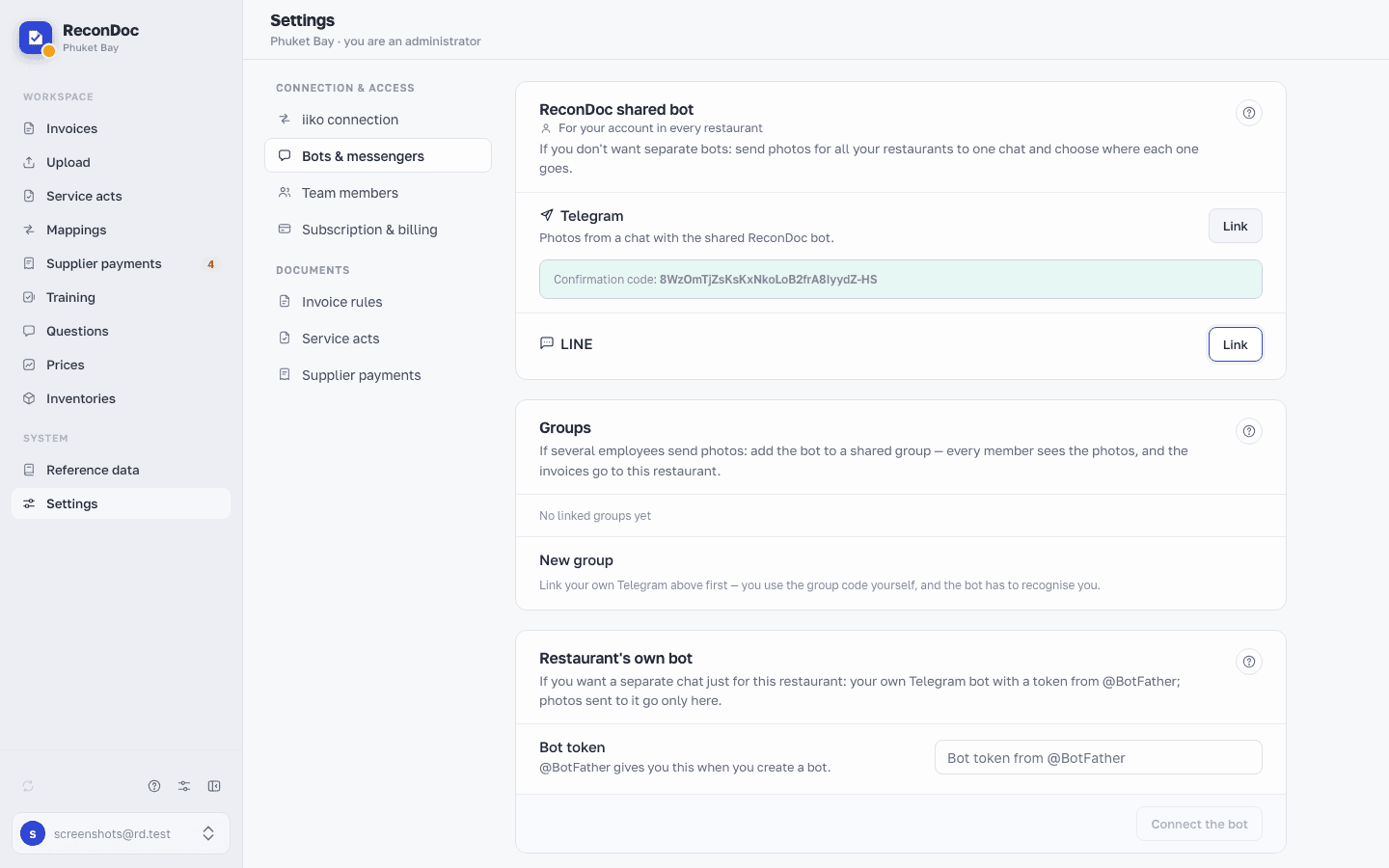
The cards go in the order you'd naturally walk through them, and each card's lead-in starts with "If…" — it tells you which path suits you: ReconDoc shared bot (you don't want separate bots), Groups (several staff send photos) and Restaurant's own bot (you want a separate chat for this restaurant only).
The screen#
 1234
- Link / Unlink — the button in a messenger's row in the ReconDoc shared bot card: it starts the linking, or removes a link that's already in place. There is no "Not linked" label on the screen — the Link button itself replaces it; a linked messenger shows a grey Linked. Once you confirm the code in the bot, the status updates by itself.
- Confirmation code: — the one-time code the Telegram bot uses to recognize a linking attempt; the service shows it right after you press Link, and there's usually an Open the bot in Telegram link beside it that passes the code along itself.
- Groups — the card for shared chats: the bot uploads photos from a linked group into this restaurant.
- Restaurant's own bot — the card for the restaurant's own bot: visible only to the restaurant administrator and not on every plan; it opens a field for the token from @BotFather.
One account — every restaurant#
A messenger link belongs to your account, not to a restaurant: once Telegram is linked it works across all of your restaurants, the ones you switch between. The LINE and MAX rows in the ReconDoc shared bot card work the same way: LINE appears for restaurants outside Russia, MAX once it is enabled for the restaurant.
Groups#
The Groups card: add the bot to a shared group — every member sees the photos, and the invoices land in this restaurant. You apply the group code yourself, so your own messenger must be linked first in the ReconDoc shared bot card. If MAX is enabled, the card has a Telegram / MAX switch at the top. The code is valid for 30 minutes and works once; the card lists the connected groups, and any of them can be unlinked.
The bot needs group administrator rights, otherwise the messenger doesn't show it the photos. If it has none, the group's row says No rights with a How to do it link; the Check button re-reads the rights. Details are in A Telegram group and The bot in MAX.
Own restaurant bot#
The card for the restaurant's own bot: the token comes from @BotFather and is pasted into the Bot token field, and Connect the bot checks it. The webhook is set up automatically, so there is nothing to do for it. Photos from this bot go only to this restaurant, and staff already linked to the shared bot are recognized automatically. The card is visible only to the restaurant administrator and not on every plan.
Store for bot uploads#
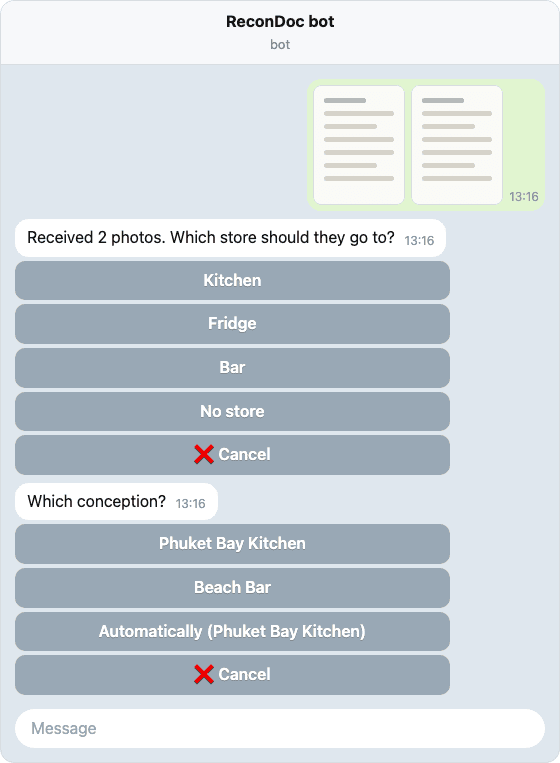
The Store for bot uploads card decides whether the bot asks which store an invoice goes to. In the Ask for the store group the rows are named after the bots (Shared Telegram bot, Restaurant's own bot, LINE bot, MAX bot) — every bot that is visible on the screen has its own switch. In the Offer in the bot group the rows are named after the restaurant's stores: with nothing ticked, the bot offers every store. Only a restaurant administrator can change this; everyone else sees it read-only. More in Telegram bots: photos straight from the kitchen.
Conception for bot uploads#
The Conception for bot uploads card is shown when iiko has conceptions. It decides whether the bot asks "Which conception?" after the store is chosen:
- Don't ask - the conception is set on its own: from the store, otherwise the restaurant's default conception;
- Ask if the store has no conception - the question comes only for stores without a conception;
- Always ask - the question comes with every upload.
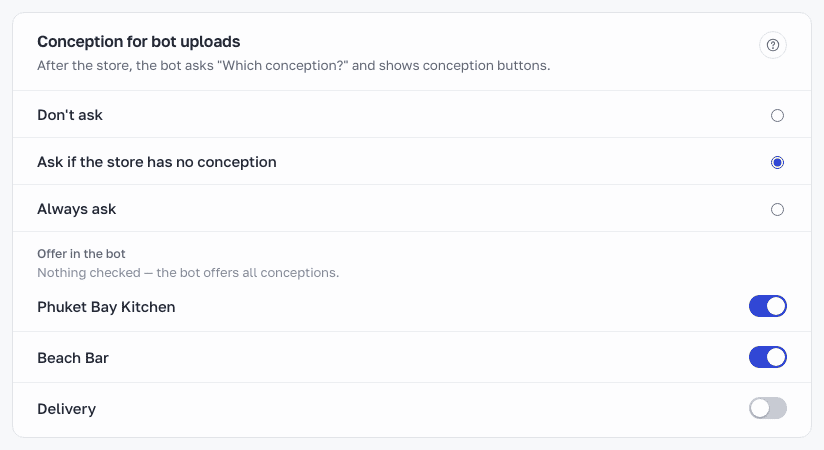
In the Offer in the bot group the rows are named after the conceptions: with nothing ticked, the bot offers all of them. If only one conception fits, the bot sets it on its own. The Automatically button leaves the choice to the store and restaurant settings. In group chats the bot does not ask for the conception. Only a restaurant administrator can change this. More in iiko conceptions.
Done. Where next?#
How to send a photo to the bot, how the shared bot and the restaurant's own bot differ, and what to do about notifications is in Telegram bots: photos straight from the kitchen. The other upload path is the Upload section, where you can name the supplier and the store before you send.
What you do here
What's next
Didn't find the answer, or the guide didn't help?
Ask support