Service acts
A section for supplier service acts — separate from invoices, sent to Syrve/iiko through the Cloud API.
about 4 minUpdated October 16, 2026
A service supplier — rent, cleaning, advertising, repairs — sends not an invoice but a service act. ReconDoc has a separate "Service acts" section in the sidebar for these documents: it works the same way as "Invoices" (upload a photo or PDF → it's recognized → you review it → you send it), but it creates a service act in iiko / Syrve instead of an incoming invoice. The section appears once the owner turns it on for the restaurant.
How an act differs from an invoice#
- Lines are services. An act only matches lines against product items of type "Service"; goods and dishes never show up as candidates.
- Expense account. Every line has an "Expense account" column — the account the service is written off to in Syrve/iiko. It defaults to the account set up in the Cloud API connection, and after the first send it is remembered for that supplier's line, the same way product matching is.
- No store, no packaging, no discount, no "Post". An act has no receiving store, no packaging, no discount split, no "post right away" flag — none of that applies to services.
- Sending goes through the Cloud API, not the regular iiko connection. You can only send an act once the Cloud API is connected in settings (see Connecting the Cloud API).
- A sent act's card is locked for editing. Once an act is "Sent to iiko" you can no longer change the header, the lines, rematch anything, or send again — only view it or delete it from ReconDoc. Fix the act in the Syrve/iiko back office instead.
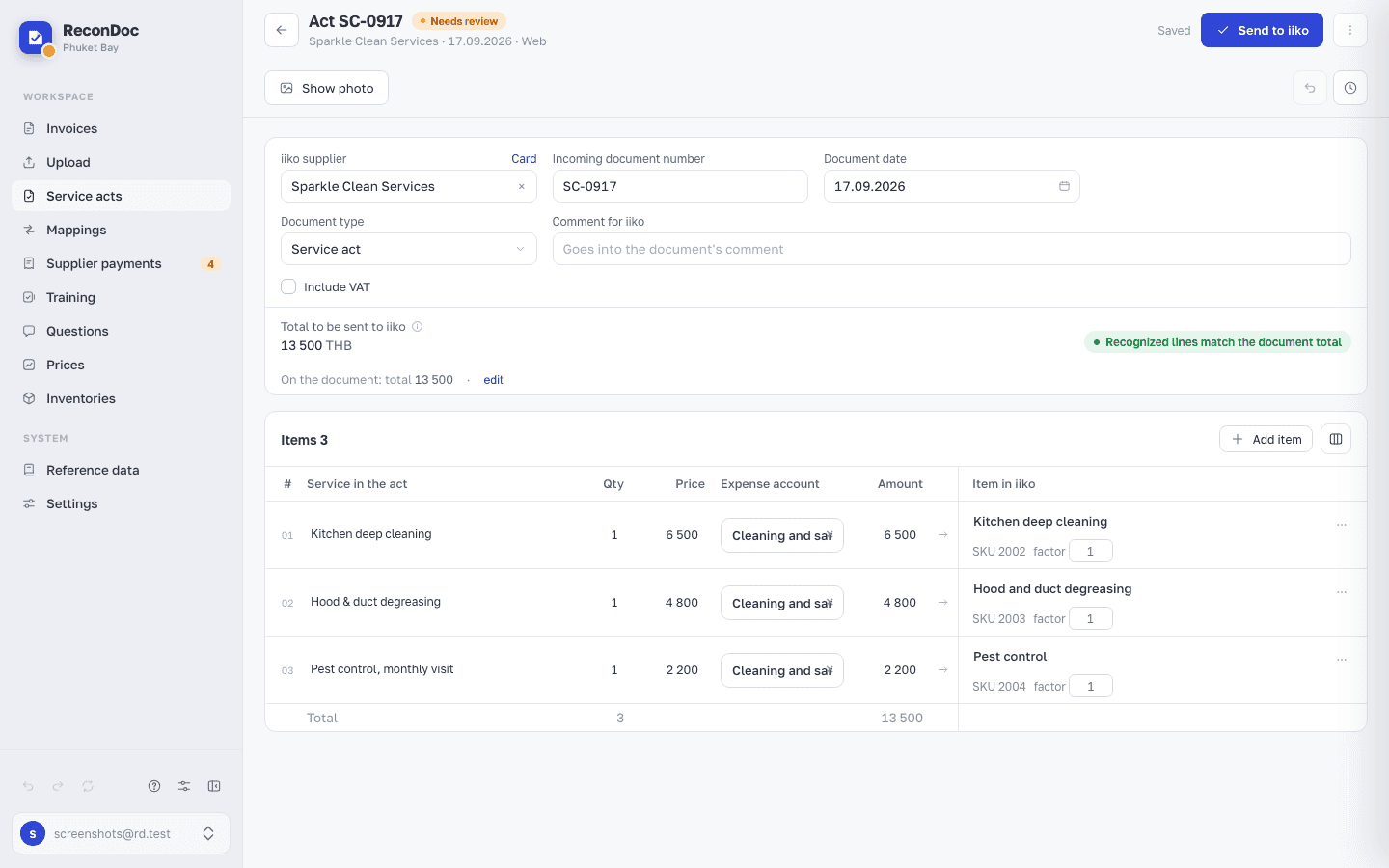 12345678
- "Send to iiko" — sends the act through the Cloud API. For a restaurant on Syrve the button reads "Send to Syrve".
- Supplier — the service supplier from the Syrve/iiko directory; the "Card" link opens its card in ReconDoc.
- Incoming document number — the act number from the paper; the act goes to Syrve/iiko under this number.
- Document date — the date of the act.
- Service in the act — the line as printed on the document.
- Expense account — the account the service is written off to. It defaults to the account from the Cloud API settings; the account you pick is remembered for that supplier's line.
- Amount — the line total; the lines add up and are checked against the total on the paper.
- Service in iiko — the "Service" product item the line is matched to. The "service" tag under the name is its type.
If a document ended up in the wrong section#
Change the type in the card, in the Document type field. For an act that is really an invoice, choose Invoice: ReconDoc asks you to confirm, recognizes the document again as an invoice, and moves it to the Invoices section. Manual edits to the lines are lost. An invoice can be turned into an act the same way. After the change you return to the list, and a notice with an "Open document" link appears at the bottom right.
If the act turns out to be a receipt or a reconciliation statement, choose Reconciliation or Other: the document goes to Invoices with that mark, without new recognition, and is not sent to iiko / Syrve. The type can't be changed if the document has already been sent, if sending hasn't finished, while it is being recognized, or while it is marked Processed (remove the mark first).
The act list#
The list works like the invoice list: search, filters by date, supplier and status, view settings, a "Check statuses in iiko" button, and bulk actions on ticked rows. The differences: there is no Store or Payment column (an act never has either), and the "Upload service act" button leads to uploading an act, not an invoice.
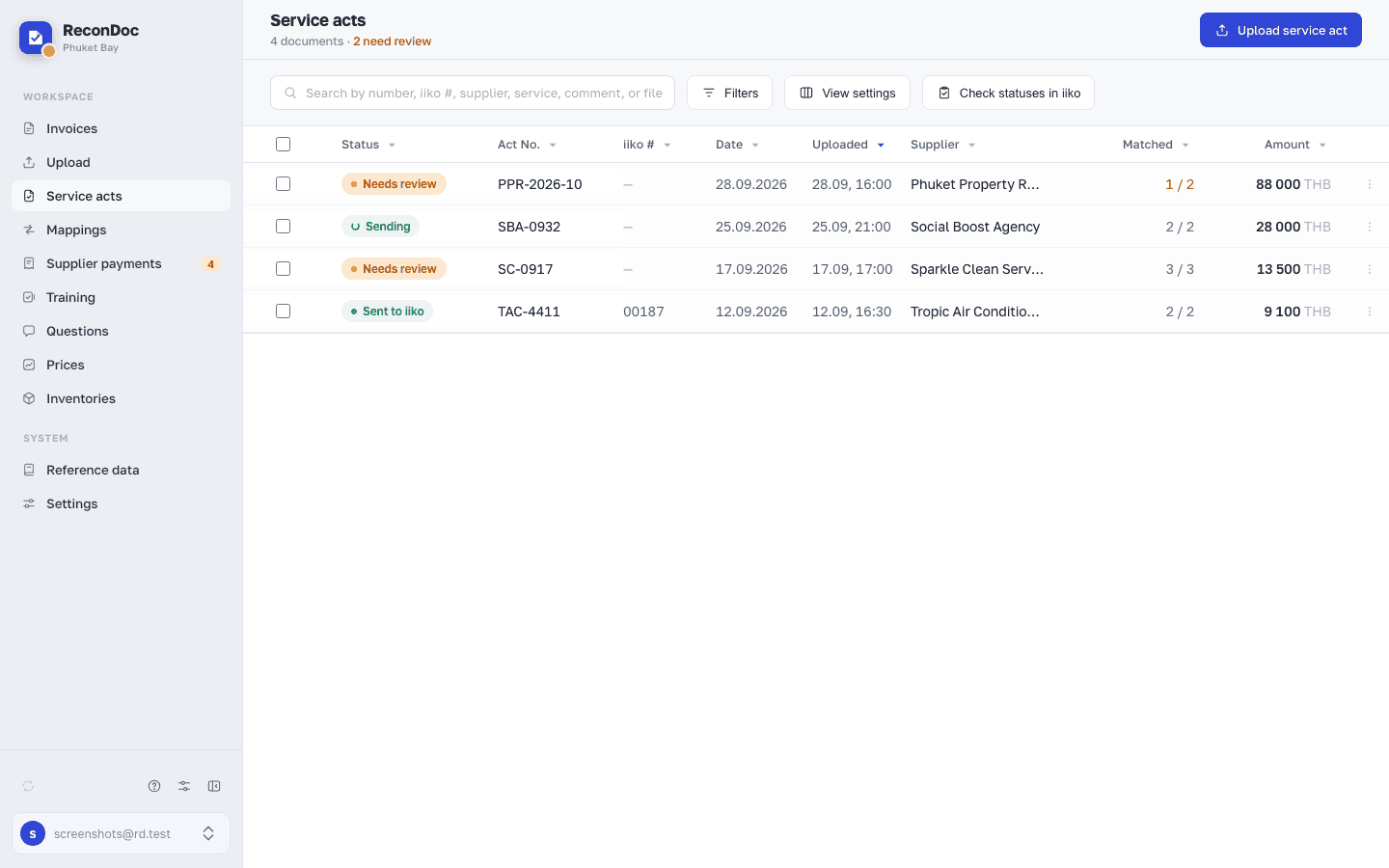 1234567
- "Upload service act" — opens the upload page for a photo or PDF of an act.
- Search — by act number, iiko document number, supplier, service, comment, or file name.
- Filters — date, supplier, status; the number on the button is how many conditions are applied.
- View settings — which columns are shown and in what order, compact rows.
- "Check statuses in iiko" — rereads the status of sent acts from Syrve/iiko (posted or not).
- Row checkbox — ticks an act for bulk actions; the checkbox in the header ticks them all.
- Status — Needs review, Sending (the send result isn't known yet), Sent to iiko, and others.
Uploading#
Uploading an act works like uploading an invoice: a photo or PDF, plus an optional supplier hint. Recognizing an act uses its own variant: it looks for the service period, the object, and units like "svc.", "mo.", "hr." — not packaging or SKUs.
Invoices and acts share one upload page. The "Invoice / Service act" switch at the top sets what you are uploading. It's always visible when the "Service acts" section is on. If "Service act" is selected but the Cloud API key isn't ready, a banner below the switch explains what's missing: the key, organization, or act time zone. You can't add files yet; you can switch to invoices, which upload as usual. To finish setup, see Connecting the Cloud API. The type can only be changed while the queue is empty: once there are files in the list, the other half of the switch is disabled, with the hint "Upload or remove the selected files first" next to it.
The "Upload service act" button on the act list is disabled until the Cloud API key is ready (same conditions): "A Cloud API key is needed." is written next to it. For the restaurant's owner there is a "Connect" link right there, leading to the key card in settings. For other roles the hint reads "The restaurant owner connects the Cloud API key." If the key and the organization are fine and only the act time zone is missing, the label is different — "Set the time zone for acts": for the owner it links to the Service acts card in settings, and other roles are told that the restaurant owner sets the time zone.
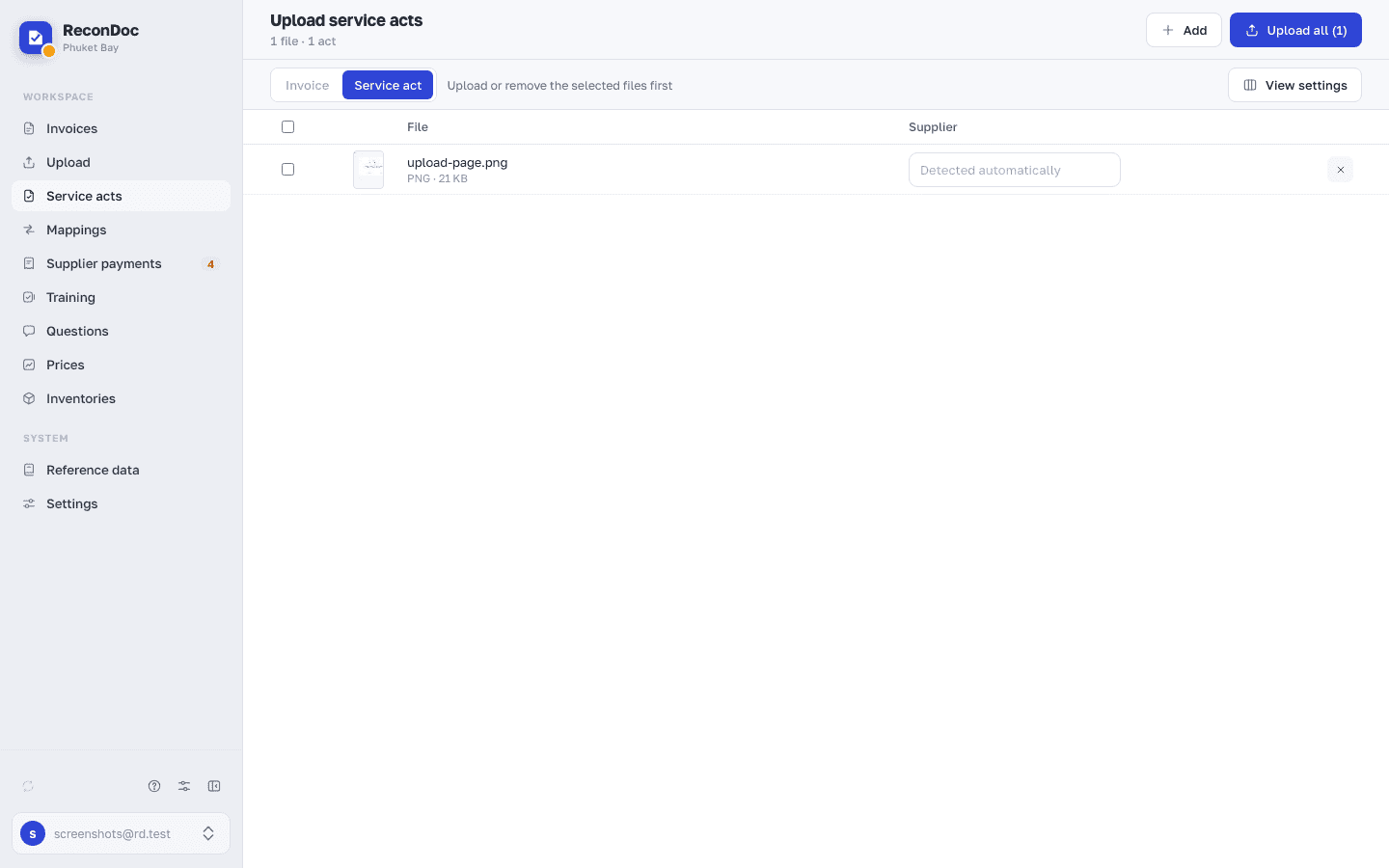 12345
- Counter — how many files are in the list and how many acts they will make.
- "Add" — pick more files; you can also just drag them into the window.
- "Upload all" — sends the listed files for recognition.
- File row — thumbnail, name and size; the cross on the right removes the file from the list.
- Supplier — a hint for recognition. Left empty, it's "Detected automatically" from the act's text.
Sending, and what can go wrong#
The "Send to Syrve" / "Send to iiko" button is available from Needs review, Error, and Duplicate — provided every not-excluded line has a service, a sum, and an expense account, and the Cloud API is connected with an organization and a restaurant time zone set. Otherwise the verdict banner shows what's missing.
If iiko stops accepting the key (it was revoked or replaced on the iiko side), uploading and sending acts are paused until the key is replaced: the key card shows a red banner, "iiko does not accept the key — replace it." Invoices keep working as usual, and acts that are already uploaded stay where they are and go out once the key is replaced. The owner replaces the key; how is covered in Connecting the Cloud API.
Sending takes time, and the connection can drop before ReconDoc learns the result. There's a dedicated state for that.
"The result of sending is unknown"#
If Syrve/iiko doesn't answer in time, the card shows the banner "The result of sending is unknown. Check the result before sending again" and becomes read-only. From there, three paths:
- "Check the result" — ReconDoc looks for this attempt's document in Syrve/iiko by an internal marker. Found exactly one → the act is marked sent on its own. Found several similar documents, or one without an exact match → they're listed with a "This is our act" button on each: check the number, date and total, and pick the right one, or confirm it isn't ours and remove the extra in the back office.
- "This is our act" — links the chosen document to the act in ReconDoc. If the document turns out to be from an earlier attempt (say, an older attempt did go through after all), the card warns with that attempt's date: the lines in Syrve/iiko may differ from what ReconDoc currently shows.
- "There is no act — cancel the attempt" — only appears after ReconDoc itself has checked Syrve/iiko and found nothing, and enough time has passed since sending. Before you cancel it, ReconDoc warns: if the document turns up later anyway, it will be a duplicate in Syrve/iiko. Cancel the attempt only after checking the back office yourself that the document isn't there. Once canceled, the act is editable again and the next send starts fresh.
While a send result is unknown, the header, lines, files, and re-sending stay locked — that's a duplicate-prevention safeguard, not a glitch.
This is the card when "Check the result" has found similar documents:
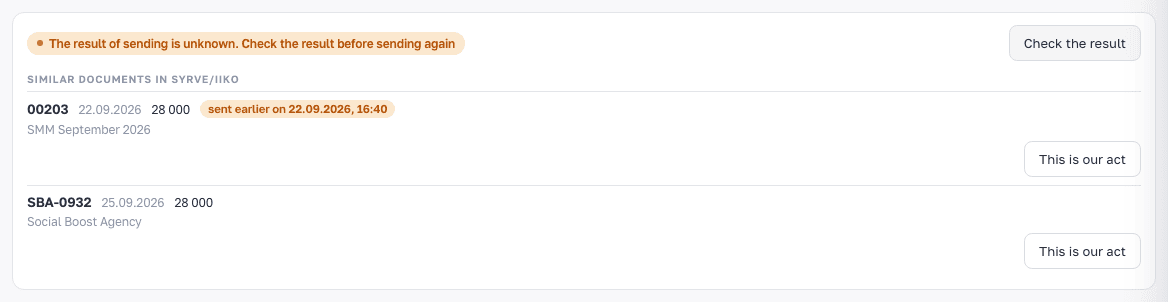 12345
- Banner — ReconDoc doesn't know whether the act was created in Syrve/iiko; until you check, the card is locked for edits and re-sending.
- "Check the result" — looks for this attempt's document in Syrve/iiko.
- Similar document — the number, date and sum of the document found in Syrve/iiko, with the document's comment below.
- "sent earlier" — the document was created by one of this act's earlier send attempts; the date is when that attempt was made. Its lines may differ from the current card.
- "This is our act" — links the document to the act: ReconDoc asks again, showing the number, date and sum, and once you confirm, the act becomes sent.
Who can do what#
Anyone with invoice access can view acts, including the Observer and Payments roles — for them the section is read-only. Uploading, editing, sending, checking the send result, and canceling an attempt requires invoice edit rights. Connecting or replacing the Cloud API key, and setting the act time zone and the default expense account in settings, are owner-only.
The "Supplier payments" section never shows acts — it's about invoices.
What you do here
What's next
Didn't find the answer, or the guide didn't help?
Ask support