Currency and VAT
Settings you set once, and they apply to every invoice from then on.
Where it is: Settings: invoice rules →
about 4 minUpdated October 4, 2026
Currency#
Set at the restaurant level and treated as the only correct one. If recognition reads a different currency off the document, it gets ignored — your setting wins.
iiko never receives the currency: it uses its own, from the database settings.
VAT#
VAT accounting turns on through a chain, from specific to general:
- The invoice's own setting — if it's set, it wins.
- The supplier's setting — if the invoice doesn't have one.
- The restaurant's setting — if neither the invoice nor the supplier has one.
This lets you turn on VAT for one supplier without touching the rest.
Careful
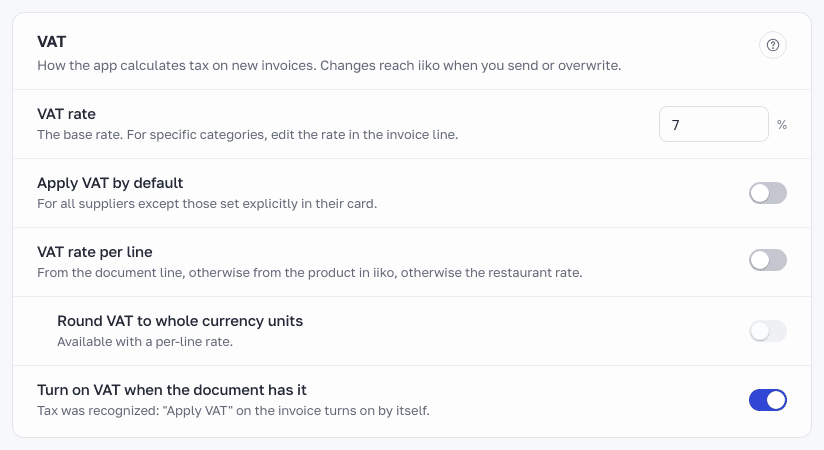
You can't turn on VAT without a rate set. The rate is set in restaurant settings; until it's there, the toggle won't let itself switch on, and it explains why.
Where the rate comes from#
| Source | When it applies |
|---|---|
| Rate on the invoice line | If you entered it by hand |
| Product's tax category from iiko | If categories are set up and synced |
| Restaurant rate | In every other case |
Important
If your iiko has tax categories set up, the service switches to line-by-line calculation automatically. If there are no categories but your invoices carry different rates (say, 10% and 22%), turn on VAT rate per line in Settings → Invoice rules: the rate comes from the document line, otherwise from the product card in iiko, otherwise the restaurant rate, and the printed tax amount is checked against the per-line calculation. The toggle applies to invoices not yet sent and to invoices being rewritten. The VAT % column on the lines shows which rate applied.
What goes to iiko#
With VAT on, each line carries its own percent and tax amount, and the document total is calculated with tax included.
Done. What's next?#
Next is access for your team.
What's next
Didn't find the answer, or the guide didn't help?
Ask support